


StarEye Camera and App Setup Guide, StarEye is a comprehensive surveillance application designed to manage compatible security cameras with professional-grade features. Built for both home and business users, StarEye transforms your mobile device into a powerful security control center.
With seamless integration for Xuanyuanxing low-power cameras, StarEye delivers reliable monitoring solutions that keep you connected to what matters most. Whether you’re at home or traveling, stay informed with instant alerts and crystal-clear live feeds.
StarEye App Screenshots
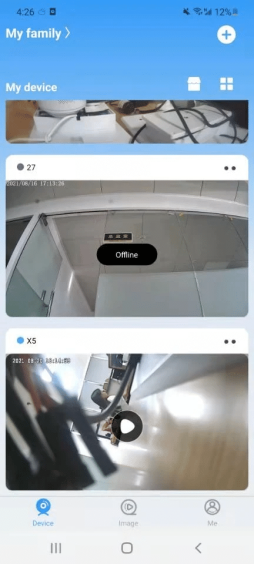
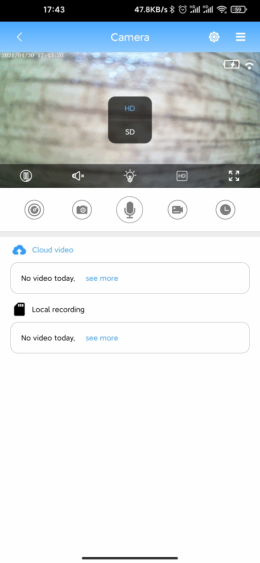
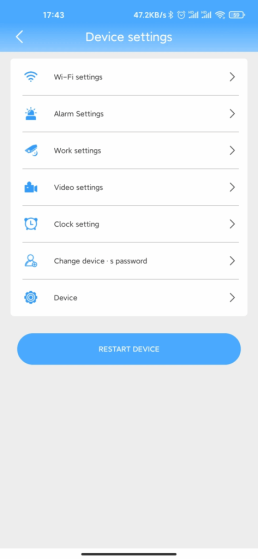
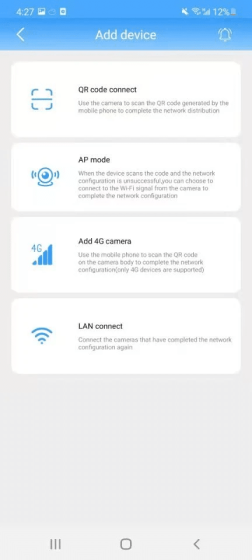
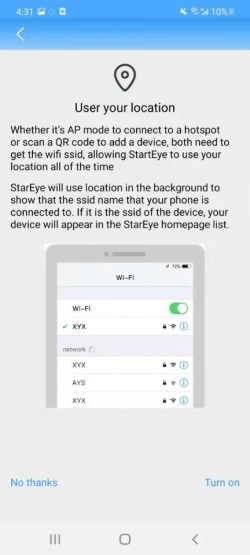
Powerful Features for Complete Security
Cloud Storage & Backup
Secure cloud storage for all your photos, videos, and surveillance recordings. Never lose important footage with automatic backup capabilities.
24/7 Real-Time Monitoring
Continuous recording with uninterrupted SD card storage on Android devices. Monitor your property around the clock with reliable surveillance.
Smart Motion Alerts
Receive instant push notifications for motion detection and visitor activity. Stay informed of important events as they happen.
Multi-User Family Sharing
Share camera access with family members and trusted contacts. Multiple users can monitor feeds simultaneously for enhanced security coverage.
One-Click Easy Setup
Simplified device pairing process gets you up and running quickly. No complex configurations required.
Remote Access Control
Live viewing and camera control from anywhere via your mobile device. Complete remote management at your fingertips.
Why Choose StarEye?
Professional-Grade Security for Everyone
Enterprise-level surveillance features made accessible for home users. Get professional security without the complexity.
Reliable Cloud Infrastructure
Dependable cloud storage ensures your recordings are safely backed up and accessible when you need them most.
Cross-Platform Compatibility
Available on both iOS (version 4.7+) and Android platforms with consistent performance across devices.
Flexible Connection Options
Multiple connectivity modes including WiFi, Bluetooth, and AP Mode to suit different installation environments.
Continuous Development
Regular updates and bug fixes ensure optimal performance. Recent iOS updates have resolved connectivity issues for improved user experience.
Get Started in 3 Simple Steps
Step 1: Download & Install
Download StarEye from the App Store or Google Play. Compatible with iOS and Android devices.
Step 2: Connect Your Camera
Use one-click setup to pair your Xuanyuanxing compatible camera. Choose from WiFi, Bluetooth, or AP Mode connection options.
Step 3: Start Monitoring
Begin live monitoring, set up cloud storage, and configure smart alerts. Invite family members to share access.
Connection Modes Explained:
WiFi Mode: Connect via 2.4 GHz networks using QR code scanning
Bluetooth Mode: Direct device connection for initial configuration
AP Mode: Short-range camera access without internet connection
Frequently Asked Questions
Q: What cameras are compatible with StarEye?
A: StarEye works with Xuanyuanxing low-power cameras and compatible security camera systems.
Q: What network requirements do I need?
A: StarEye requires 2.4 GHz WiFi networks for optimal performance. 5GHz networks are not currently supported.
Q: Can multiple family members access the cameras?
A: Yes, StarEye supports multi-user sharing, allowing family members to access camera feeds simultaneously.
Q: Does StarEye work without internet?
A: Yes, AP Mode allows short-range camera access without an internet connection, though cloud features require internet connectivity.
Q: Is cloud storage included?
A: StarEye supports cloud storage for photos, videos, and surveillance recordings. Specific storage plans may vary.
Q: How do I set up motion alerts?
A: Motion detection and push notifications can be configured through the app’s intelligent alarm settings.
Pro Tips for Optimal Performance
Setup Optimization:
Ensure your WiFi network is 2.4 GHz for best compatibility
Position cameras within optimal range of your WiFi router
Use QR code scanning for fastest network pairing
Performance Tips:
Regularly update the app for latest bug fixes and improvements
Check SD card storage capacity for continuous recording
Configure alert sensitivity to reduce false notifications
Troubleshooting:
If experiencing connection issues, try switching between WiFi and Bluetooth modes
Restart the app if live feeds become unresponsive
Ensure camera firmware is up to date for optimal compatibility
Security Best Practices:
Change default passwords on your camera devices
Regularly review who has access to your camera shares
Enable motion alerts for important monitoring areas
Professional Surveillance Made Simple
Monitor your property anywhere, anytime with StarEye – the trusted surveillance app for smart security cameras with cloud storage and real-time alerts.
Download StarEye Today
https://play.google.com/store/apps/details?id=shix.stareye.camera&hl=en
https://apps.apple.com/us/app/stareye/id1523975767
StarEye Camera Manual: Setting Up Your StarEye Camera
This article contains everything you need to know about how to use StarEye cameras, the various ways to add them, setting up StarEye camera features, and more, and will continue to be updated.
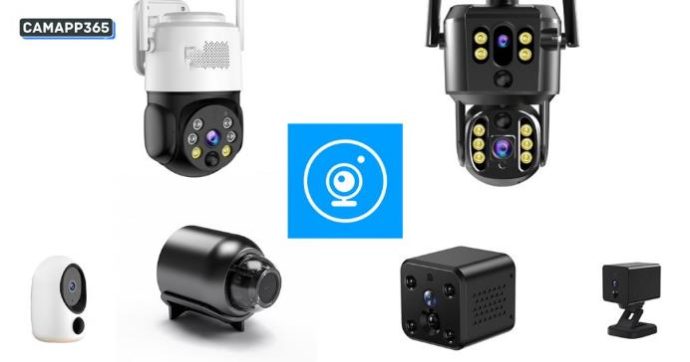
StarEye APP Download
StarEye supports Android and iPhone, you can download it from google play or app store.
Precautions for use
Login StarEye
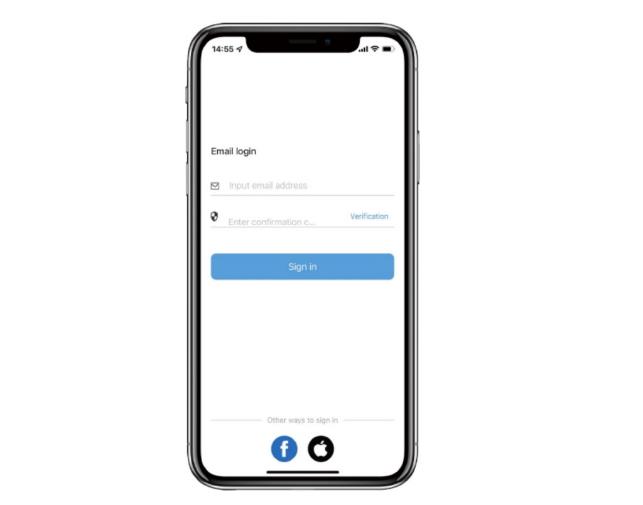
To start using StarEye, you need to register and log in to your account, please use your email address to register.
Indicator status
| Reset complete | Blue light off, red light off |
| Network not configured | Blue light off, red light flashing slowly |
| Network connection | The blue light flashes quickly, the red light is off |
| Network connection successful | Blue light is always on, red light is off |
| Abnormal network connection | Steady red light off blue light flashing quickly |
| Equipment upgrade | Blue light off, red light always on |
| Not present configuration | Blue light flashes fast, red light flashes fast |
Prompt tone Description
| A prompt tone | Camera reset succeeded |
| Two continuous prompt tones | Camera waiting for network configuration |
| Three continuous prompt tones | Camera network connection |
| Four continuous prompt tones | Camera network connection succeeded |
| Five continuous prompt tones | Camera upgrade successfully |
| Six continuous prompt tones | Camera low power |
Connect StarEye Camera To Wifi
There are two modes for connecting StarEye cameras.
AP Mode
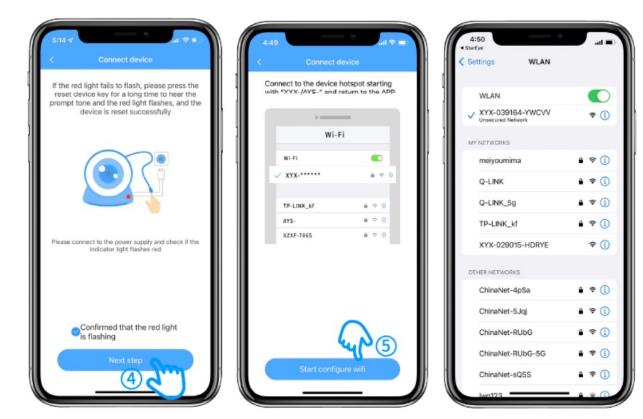
1. Click the “+” button to add your StarEye camera, click the “AP Mode” button, and then select the appropriate camera type.
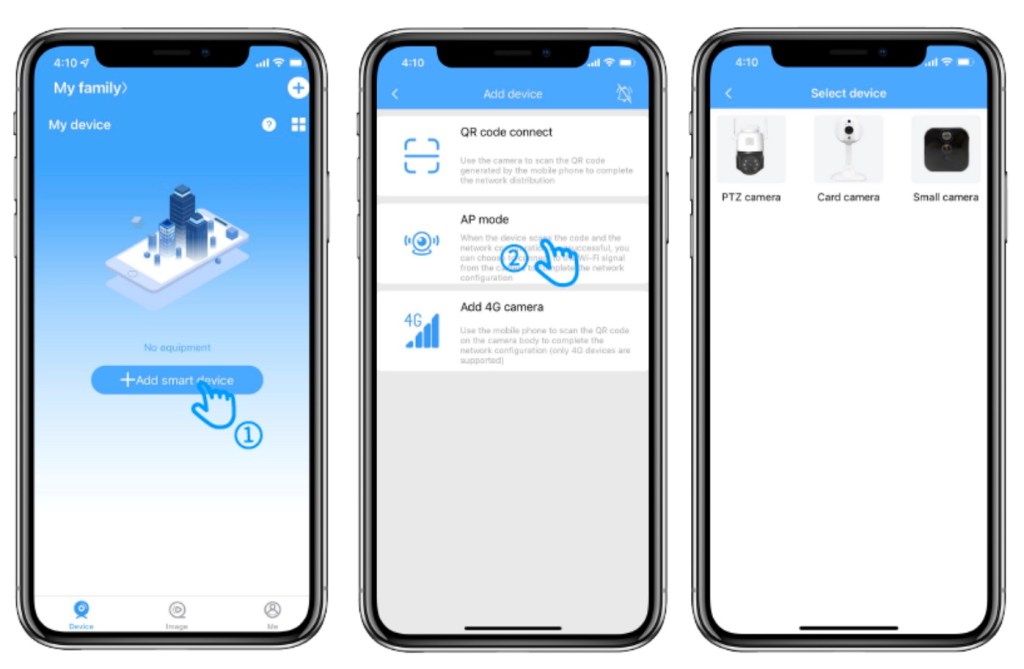
2. Make sure that the StarEye camera’s indicator light is off in blue and blinking in red, then click the Next button.
Click “Start configure wifi”, then connect to the wifi name starting with “AYS xxx” or “XVX xxx”, which is your camera’s hotspot. your StarEye camera hotspot. After connecting to the wifi, return to StarEye APP.
NOTE:
If you use Android system, a warning window may pop up saying “Internet unavailable”. Ignore the message and keep on current network connection.
If you use IOS system, a warning window may pop up saying “Unsecured Internet”. Ignore the message and keep on current network connection.
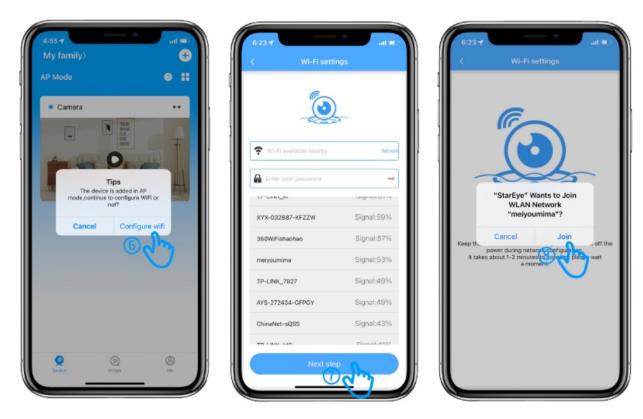
3. Click “Configure wifi”, then select your wifi and enter the password, make sure your wifi and password are correct and click Next.
Click “Join”, then wait for StarEye camera to connect to your wifi.
StarEye camera only supports 2.4G wifi, please connect 2.4G wifi.
QR code Mode
1. Click on “+”, select “QR Code Connection” and choose the appropriate StarEye camera type.
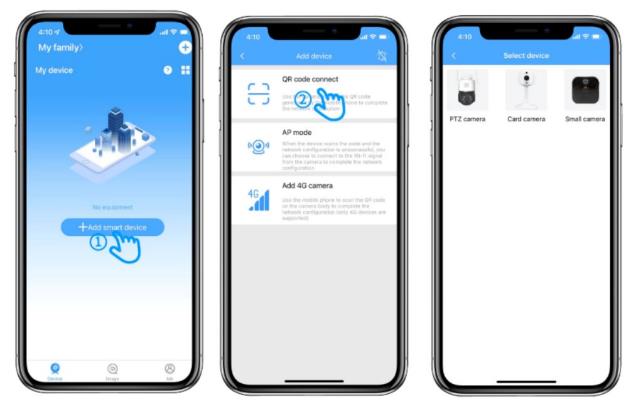
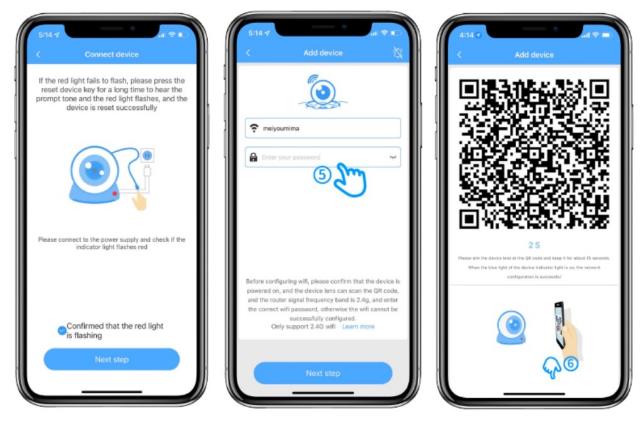
2. Make sure that the StarEye camera’s indicator light is off in blue and blinking in red, then click the Next button.
Select 2.4g wifi and enter your wifi password, make sure the wifi password is correct and click next.
Then point the QR code towards the StarEye camera and let the camera scan it.
The camera will emit four beeps when it successfully scans the QR code, then wait for the camera to connect to your wifi.
Share StarEye Camera
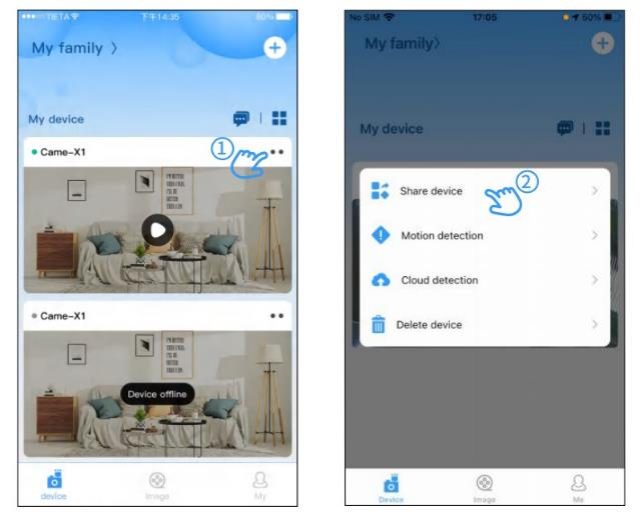
1. After adding a StarEye camera, click the more icon on the right side of the device on the homepage/open and click to share the device
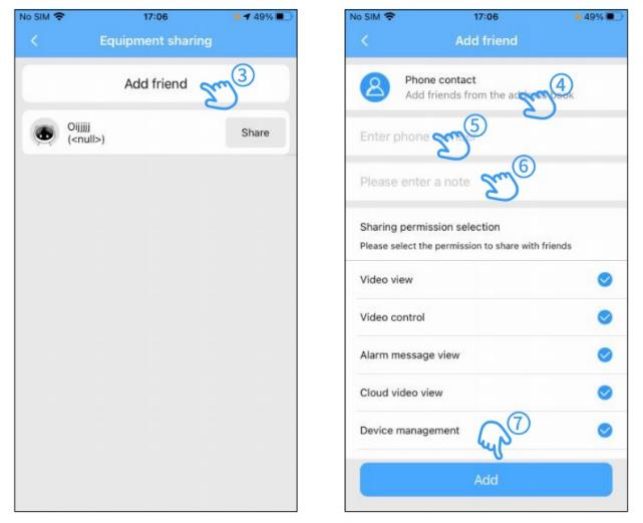
2. If there is no contact in the list, click “Add contact” to enter the “Add contact list. Input the mobile phone number, fill in the user name and select the permission to share with the contact, and click share to share the StarEye Camera successfully
Wake Mode
This feature is not supported by StarEye cameras that need to be connected to a power source at all times.
Automatic wake-up power saving mode, The more the camera wakes up, the power consumption will increase
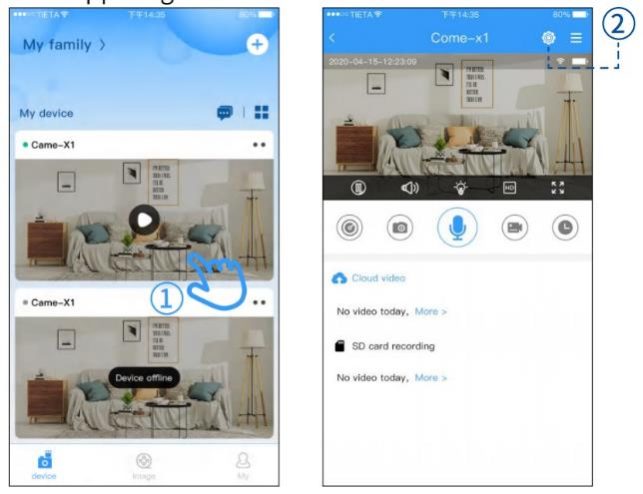
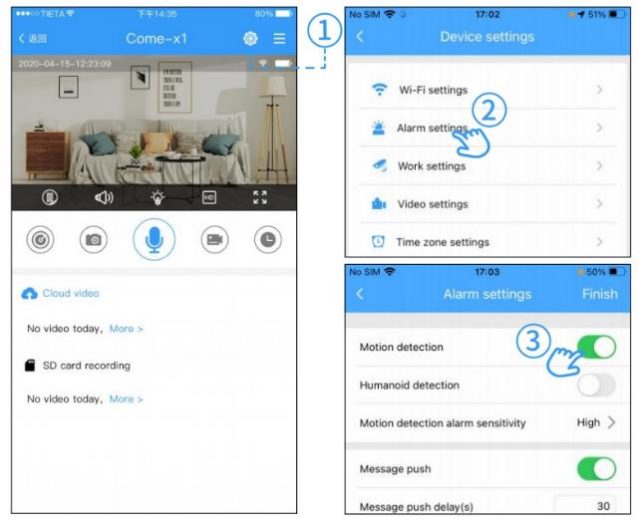
1. First click the device on the homepage to enter the video screen, and then click on the device settings icon in the upper right corner.
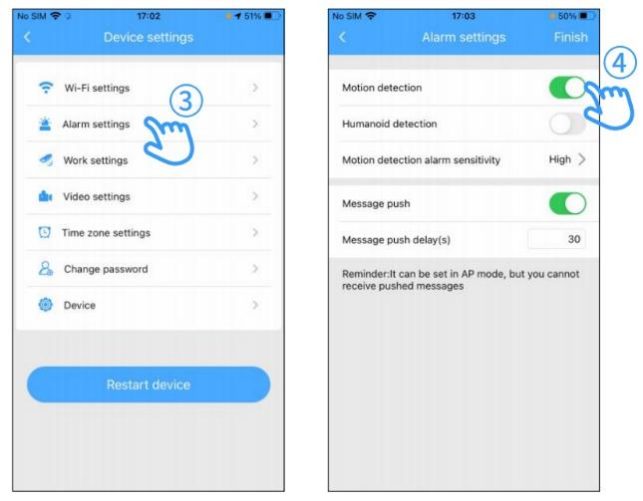
2. After entering the device setting page, open the alarm setting, and then click to open the motion detection in the lower page
3. After enabling motion detection, return to the previous page, find the wake-up setting and click on.
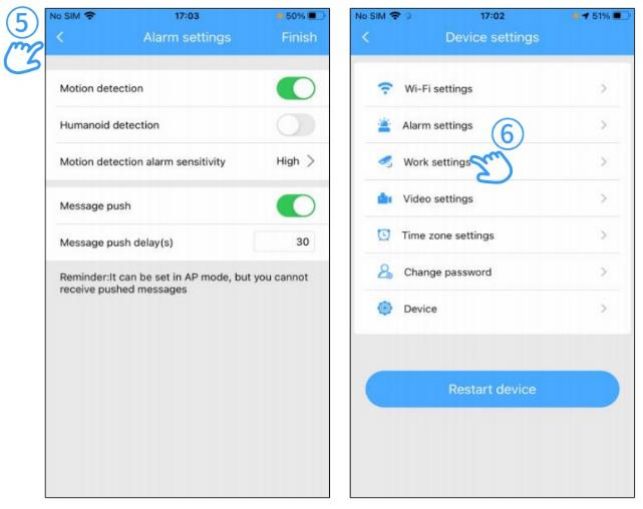
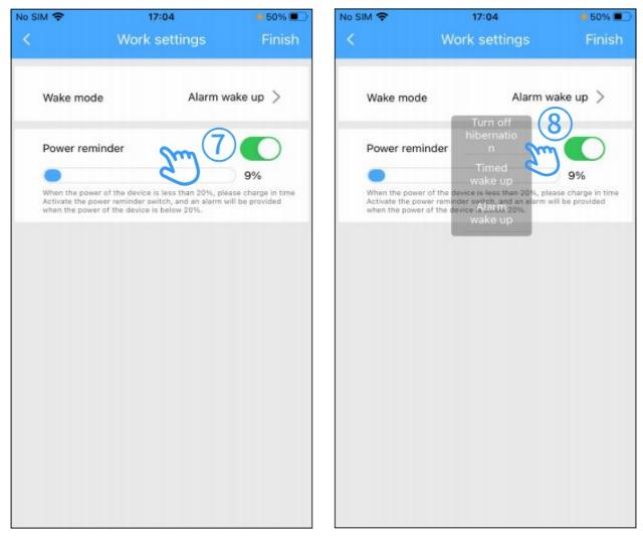
4. Click to open the wake-up setting/find the wake-up mode under the list, clickAfter that, three options will pop up, click to enable the option to wake up the alarm, At this time, the device’s alarm/wakeup setting is successful
Night Vision Setting
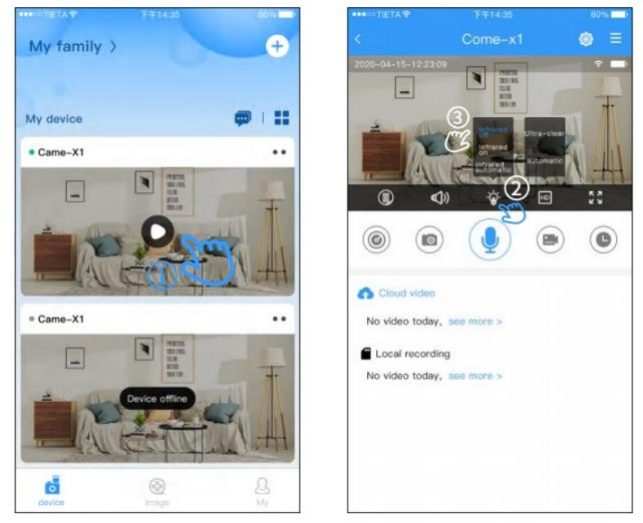
Click to enter the camera video screen, click the light icon under the video Select night vision, select infrared on/infrared off.
Indicator light switch
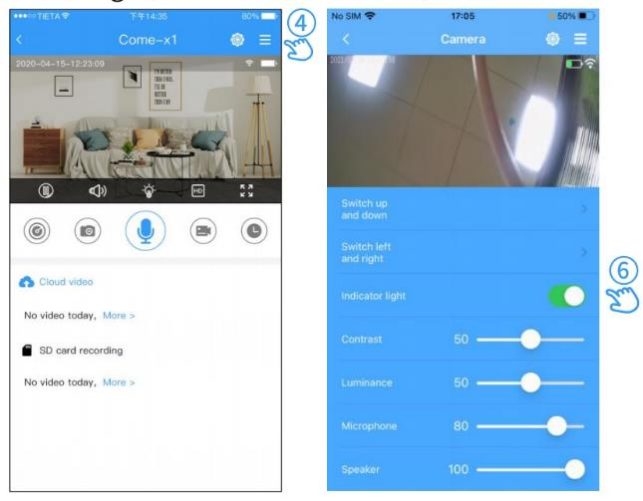
Click to enter the video screen of the camera, click ” More settings” in the upper right corner, find the indicator light, and click to turn it on/off.
Motion Detection Settings
Click to enter the camera video screen, click the settings icon in the upper right corner, and click alarm Set/click to turn on/off motion detection
View motion detection records
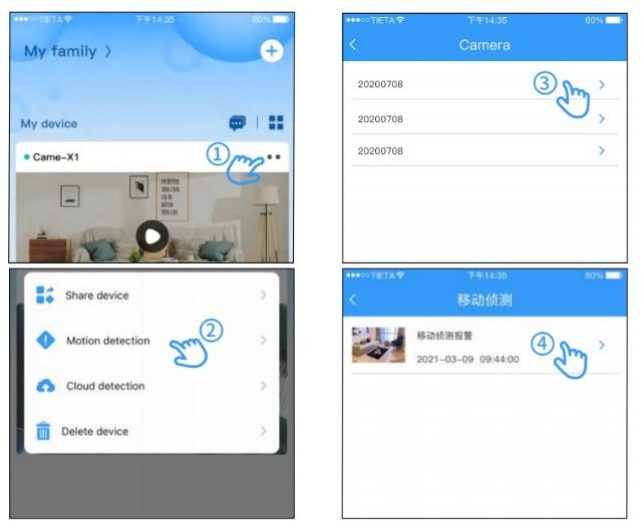
On the homepage device, click the two-point more icon to open, and click motion detection.
You can view the detection records.
Buy Cloud Storage
Buy SIM Card data package
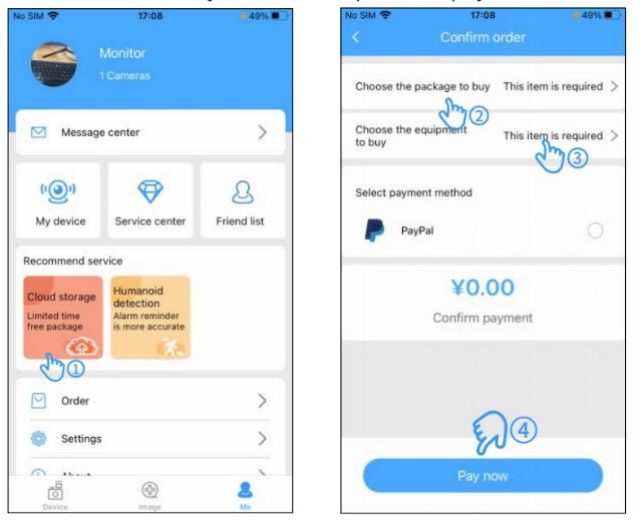
1. Open the APP and click “My”, find service recommendation and click “4G traffic card package”
2. Click “Add card number” in the top right corner of the order page, enter card number and click “Complete”
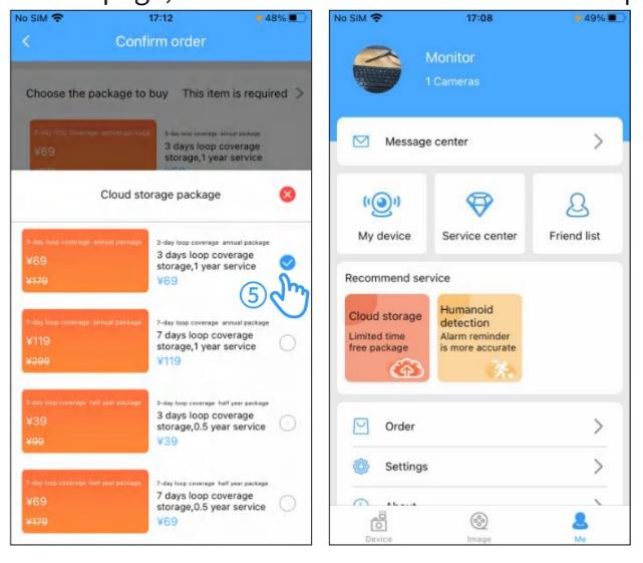
3. After adding, select the card number and package to be purchased on the order page, and select the payment method to pay.
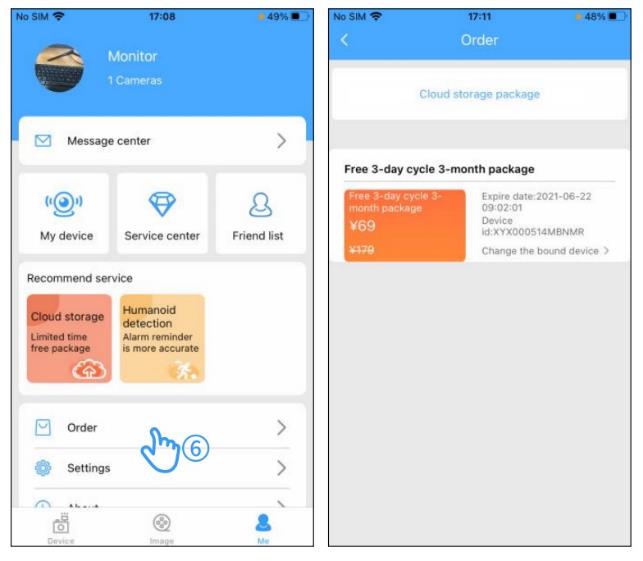
4. Click “My”, find order management and click to enter to view the details of the purchased cloud storage package and traffic card package.
Reset StarEye camera
After the camera is powered on, press and hold the reset button for about 8 seconds. When the indicator light turns to blue light off and red light flashes slowly, the device successfully restores the factory settings.
StarEye For PC
StarEye only supports iphone and android mobile phones, there is no PC client, but you can use PC emulator to install the app, so you can also use StarEye camera on your computer.
.
.