Annke Sight - User Manual of Annke Wireless Repeater
Applies to: NW41V/N441H/N441K/N28WEB/N441B/N441D/N441L/N44PAN/N44PAJ/N34WDB/N34WDD/N44WEB/N44WED/N44WEC/NW41V/N44WBD/N48WHP/N48WHE/WL400/WE400
Product Appearance
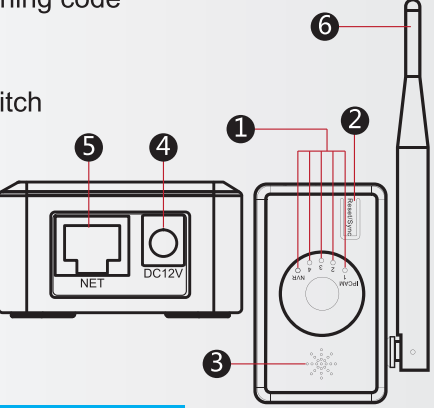
1 Indicator light---Indicate the signal status of each IPC.
2 Match Code/reset button---press 3s and start matching code
3 Power---Power supply
4 Network port---Connect to NVR/switch
5 Antenna---To receive wifi signal
Dimension & Specification
|
WIFI |
802.11b/g/n 2.4G |
|
|
Capacity |
4 Wireless IPC |
|
|
Indicator |
5 LED indicators, 4 for IPC signal state,1 for NVR connection state |
|
|
Interface |
1 x RJ45 100Mbits network interface |
Match mode with IPC, Video output |
|
1XReset button |
One key to match code, reset |
|
|
1 x 12V Power supply |
Power supply for the repeater |
|
|
Dimension |
74x31x186 mm |
|
Operation Guide
Note:
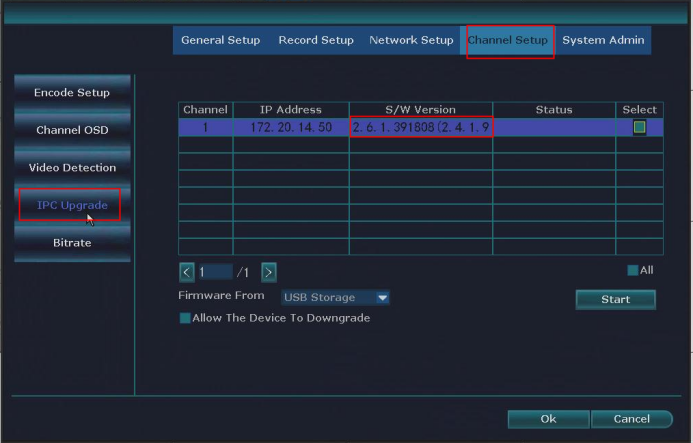
Make sure your camera version is 3.2.0 and above, Otherwise you can only have the wireless repeat function manually. You can get the camera version here:
Right-click the NVR mouse and go to Setting-Channel Setup-IPC Upgrade to identify the version.
1. Matching code the NVR and Repeater.
Connect the NVR and Repeater with an ethernet cable.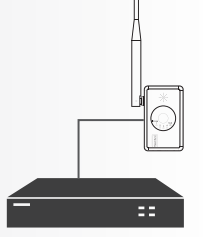
Right-click the mouse of NVR then go to Video Manage. Search out the Router IP address. Click the router then Match code for the NVR. When the Wireless has been matched, you can remove the cable connection between NVR and Repeater.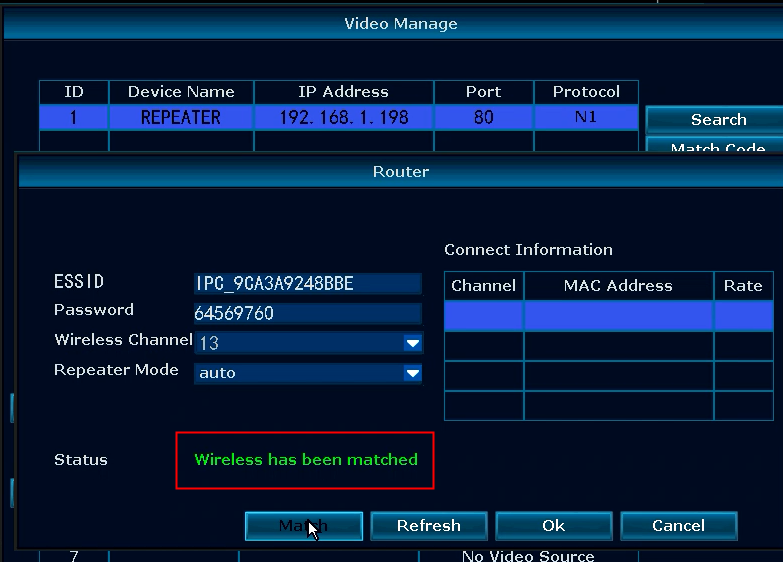
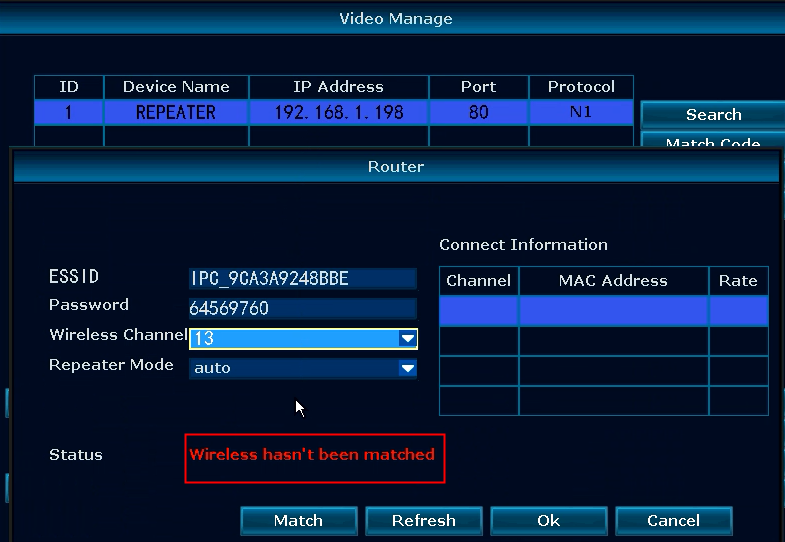
When the Repeater matched success, IP information will keep in the device list, and the IP address will not change. Please keep it default.
2 Connect the Repeater to IP cameras
2.1 Automatic repeat.
Please confirm your IP camera version, If it is confirm 3.2.0 and above. You can directly place the Repeater between the cameras and NVR, the system will auto repeater by the router.
2.2 Manually repeat
If the version cannot support manual repeat. You need to repeat the signal manually.
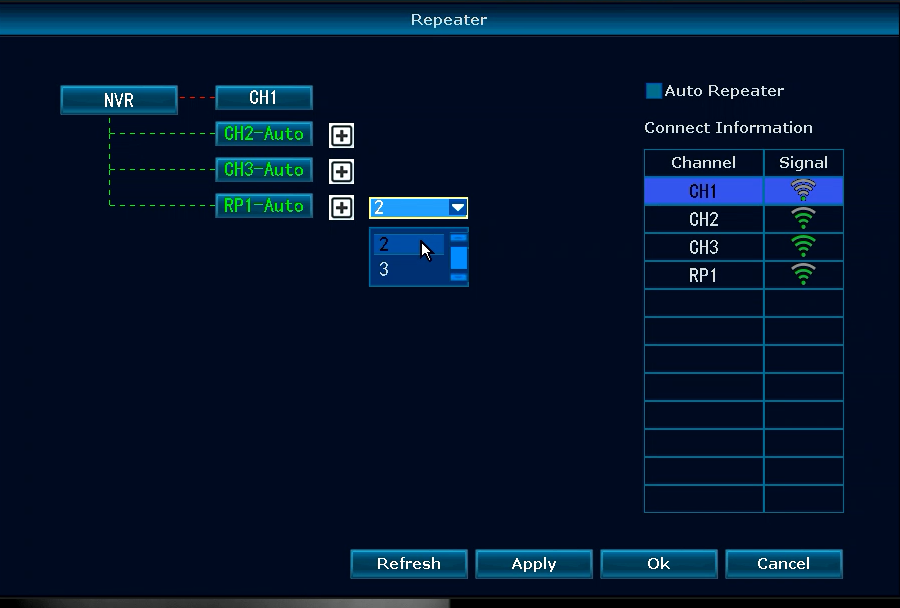
Right-click the mouse of NVR then go to Video Manage. Go to the repeater option.
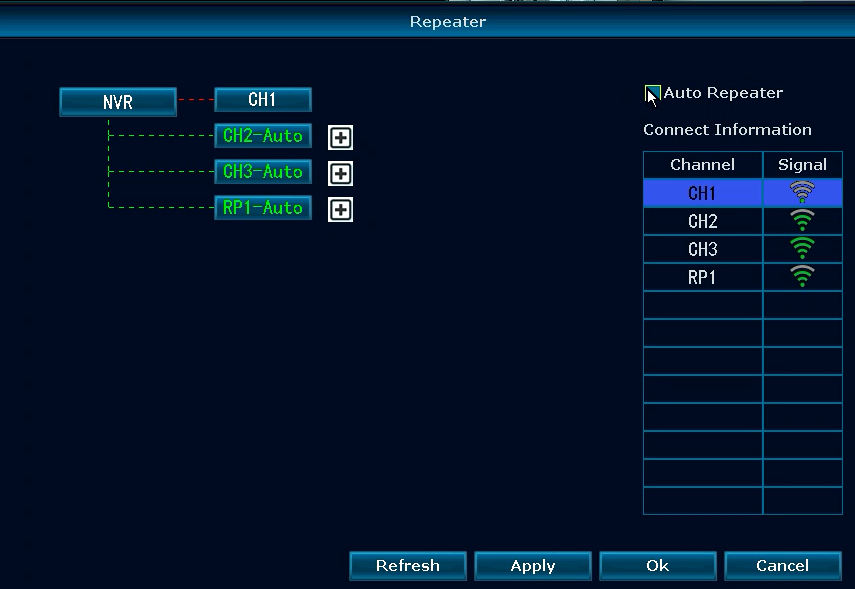
Please disable the “Auto repeater” function. Then adjust the cameras to the repeater.
Click Refresh to get the repeater status of the cameras. Then you can connect the camera into the Repeater by clicking the "+" icon.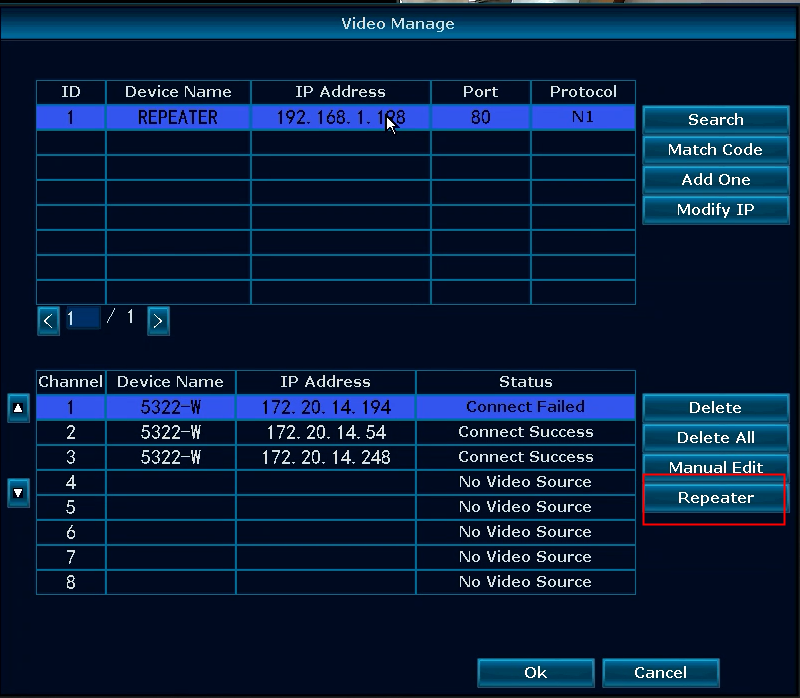
For example, if you want to connect camera 2 to the NVR via Repeater, you can click the "+" icon after the Repeater. Then select 2 to get set.
Then click "ok" to save the setting. Here are some pictures to show the operation.
Note:
Please make sure all the cameras and the repeater is in a well-signal position. You can move the weak-signal camera near the NVR first. If the signal is too weak and the connection is not stable, the repeater setting will fail to bridge.
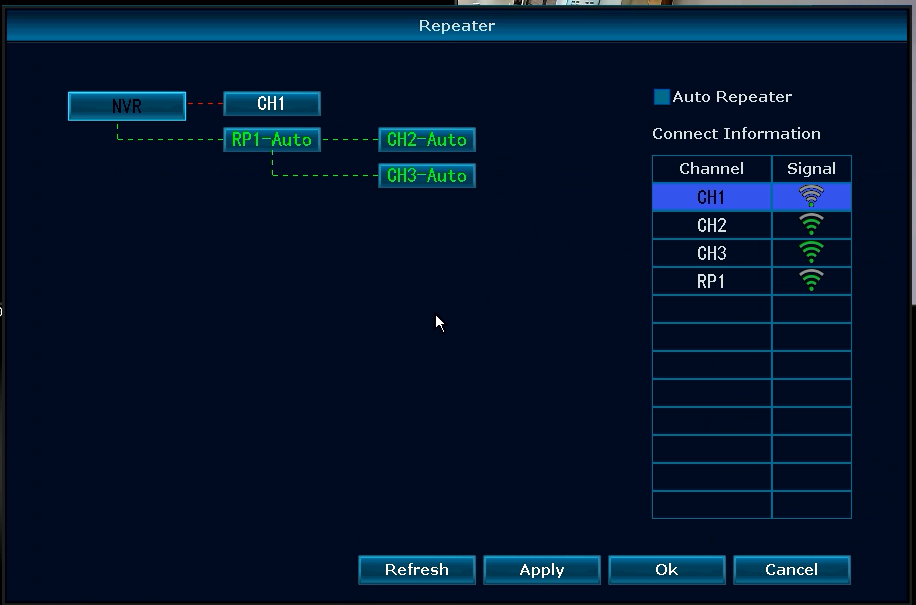
Connection Model
1. Wireless connection model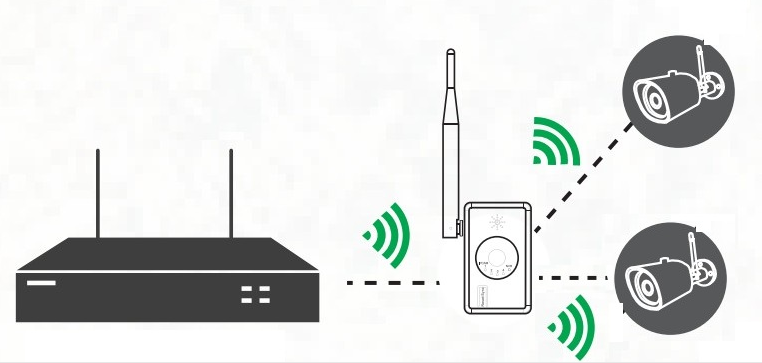
2. Wired Connection Model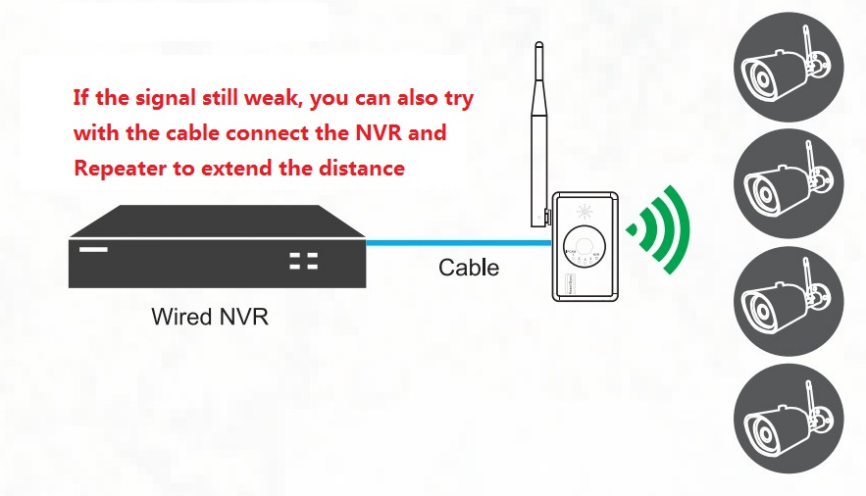
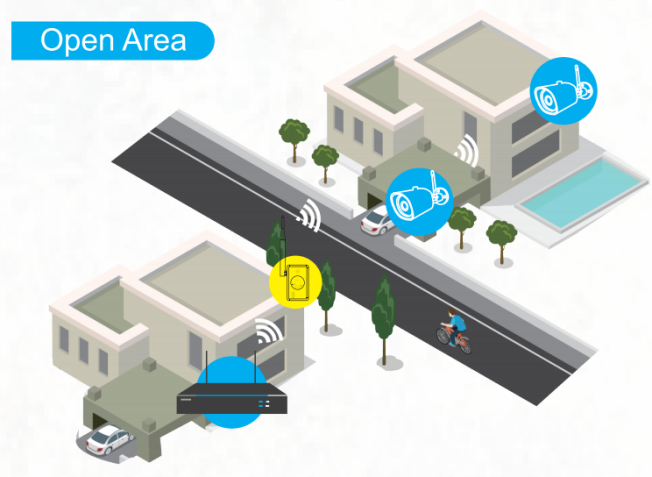
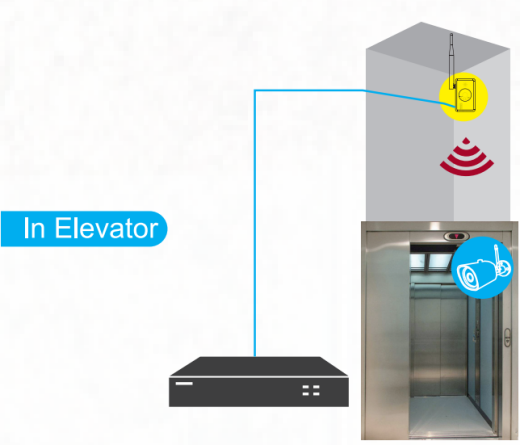
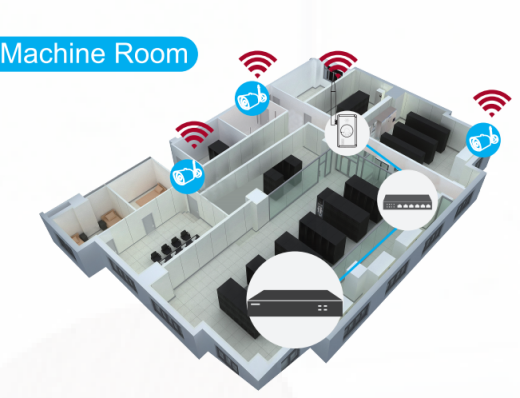
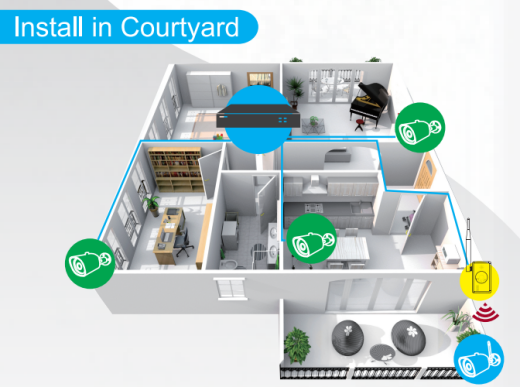
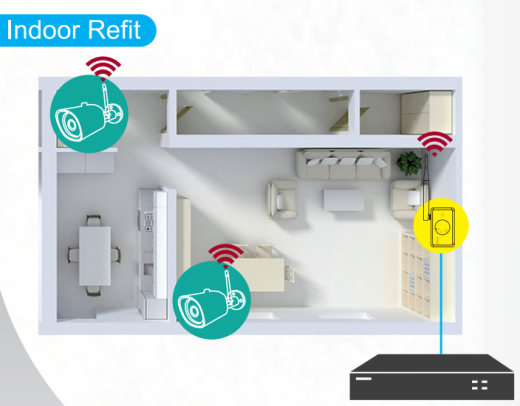
Case Study
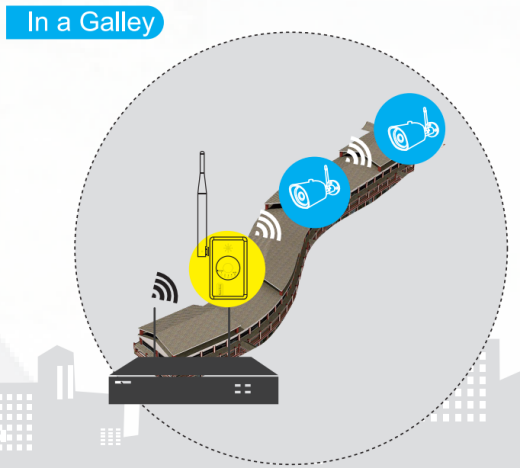
Was this article helpful?
Bu bilgiler sorununuzu çözmeye yardımcı oldu mu?
Still need help?
Uzman ekibimiz size yardımcı olmak için burada.