Annke Vision - Adding Device to App via The IP Address.
Applies to: DT41Y/DT61Y/DT81Y/DN41R/DN61R/DN81R/DT41GB/DT81GB/DT61GB/DT41DB/DT81DB/DT61EQ/DW41JD/DW81KD/DW61LD/DT81DP/N48PI/N44PI/N46PI/N44PAM/N48PAW/N46PCK/N88PCH/N441Y/N481Y/S500/S300/FC200/NCK800/H800/H500
Purpose:
Adding an ANNKE device to the app via IP address only allows users to have local access to the device (which means the user can only view the cameras when the phone is connected to the same router as the ANNKE device), but not remote access.
However, this adding method provides a faster and more stable connection. The fast-forward playback is also available in local access.
Before you start:
- Make sure your phone is connected to Wi-Fi.
- Make sure the ANNKE device for adding is connected to the same local area network as the phone.
- You have logged in to your app account.
Steps:
1. Please connect the device and phone to the same LAN network. In other words, please make sure the device and the phone are connected to the same router or switch. The phone can be connected to the router by WIFI.
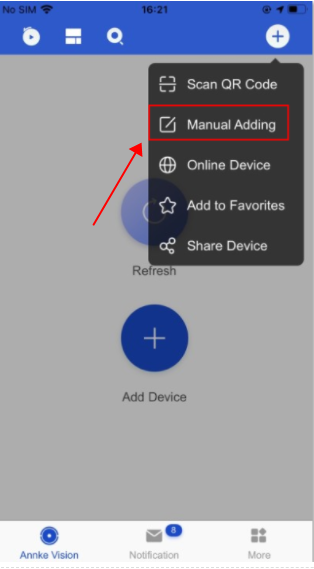
2. Please sign in the Annke Vision APP and click “Manual Adding”.
3. The Adding Type should be IP/Domain.
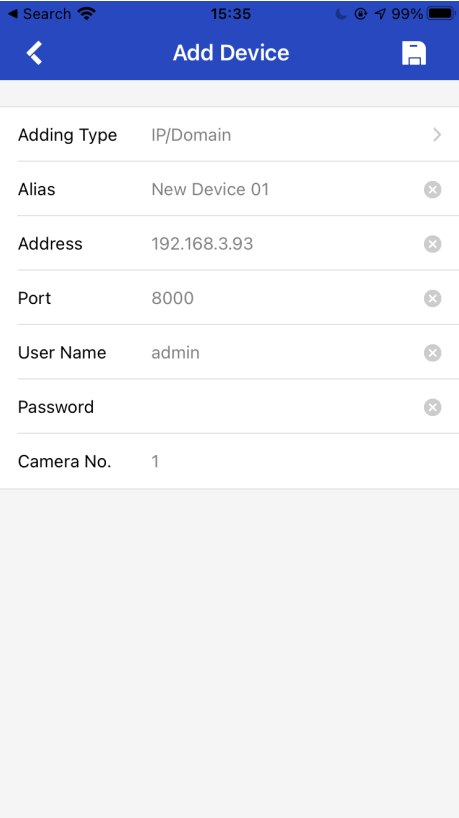
Key Information.
The Address refers to the device's IP address.
The user name is admin.
The Password refers to the device`s password instead of the APP login password.
Was this article helpful?
Bu bilgiler sorununuzu çözmeye yardımcı oldu mu?
Still need help?
Uzman ekibimiz size yardımcı olmak için burada.