Annke Vision-How to Set Up Motion Detection Recording? (H800)
Applies to: N48PAW/N46PCK/H800
Introduction:
To view the motion recordings triggered by movements, it is required to set up a recording schedule for the NVR. In this article, we will show you how to set up motion detection recording.
Steps:
1. Access the system menu on the monitor and go to 'Record→Storage' to check if the status of the hard drive is normal and the hard drive has capacity left.
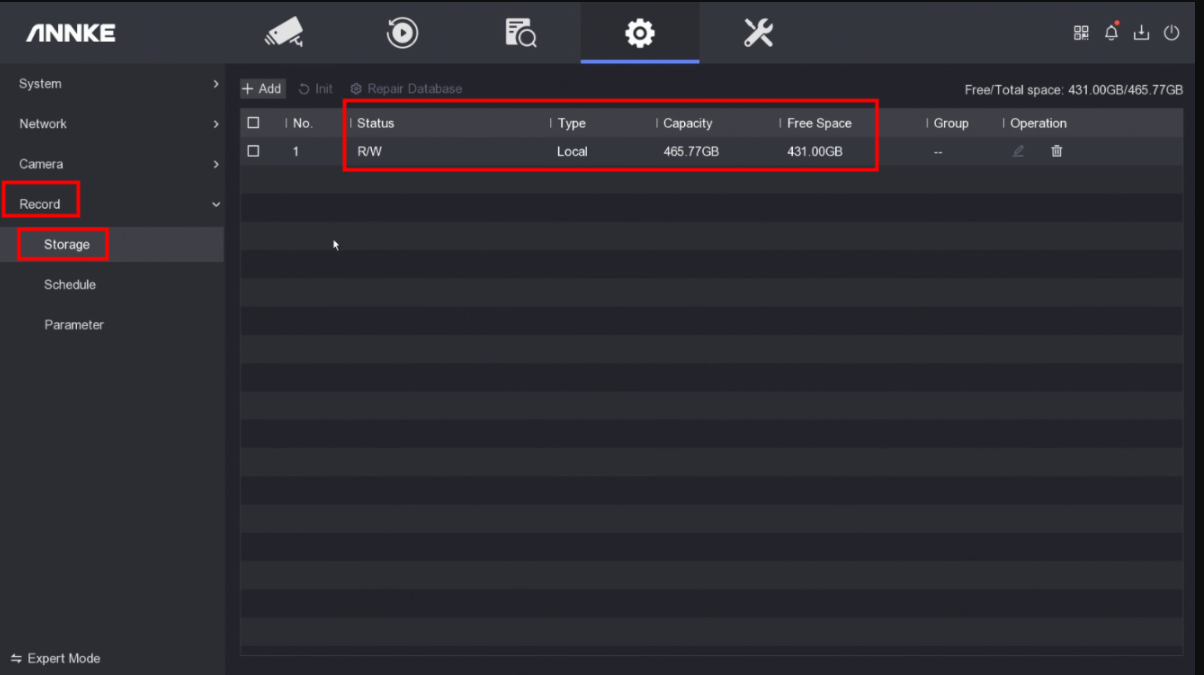
If the status is abnormal or the capacity is full, select the hard drive and click 'Init' to format the hard drive.
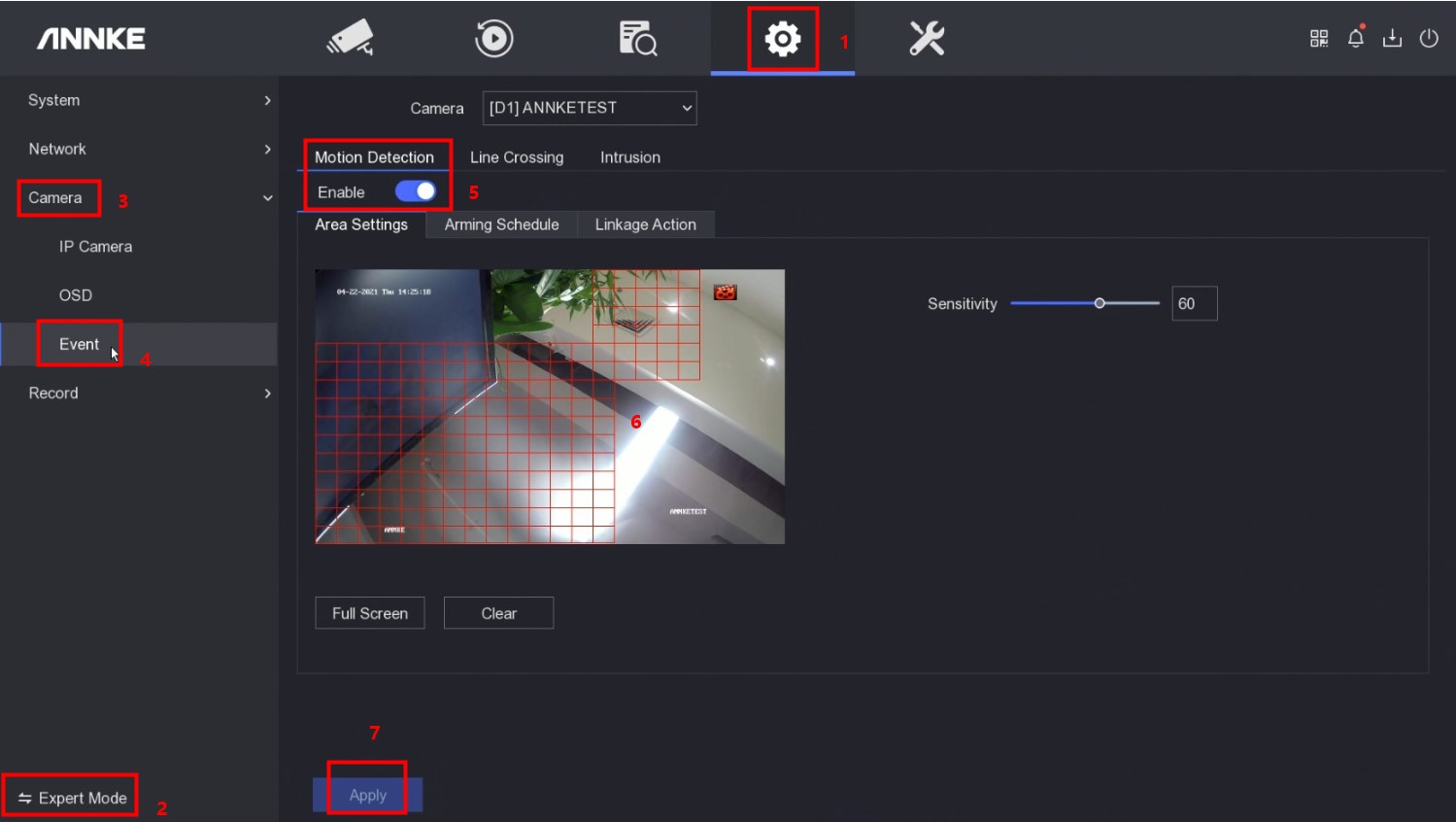
2. Go to 'Camera→Event' to enable motion detection and set up the detection area.
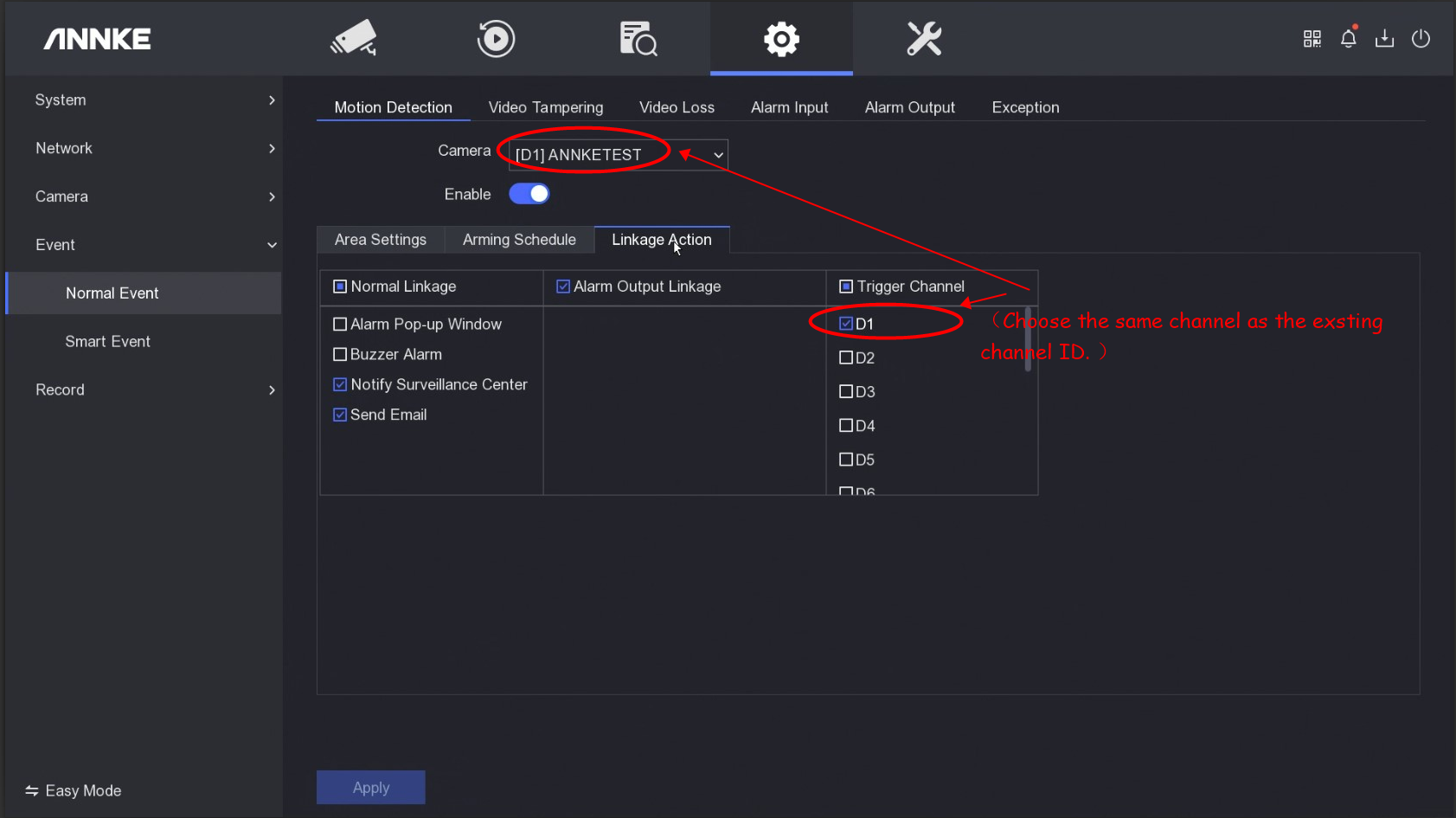
3. Go to the tab 'Linkage Action' to tick on the same channel as the one being configued.
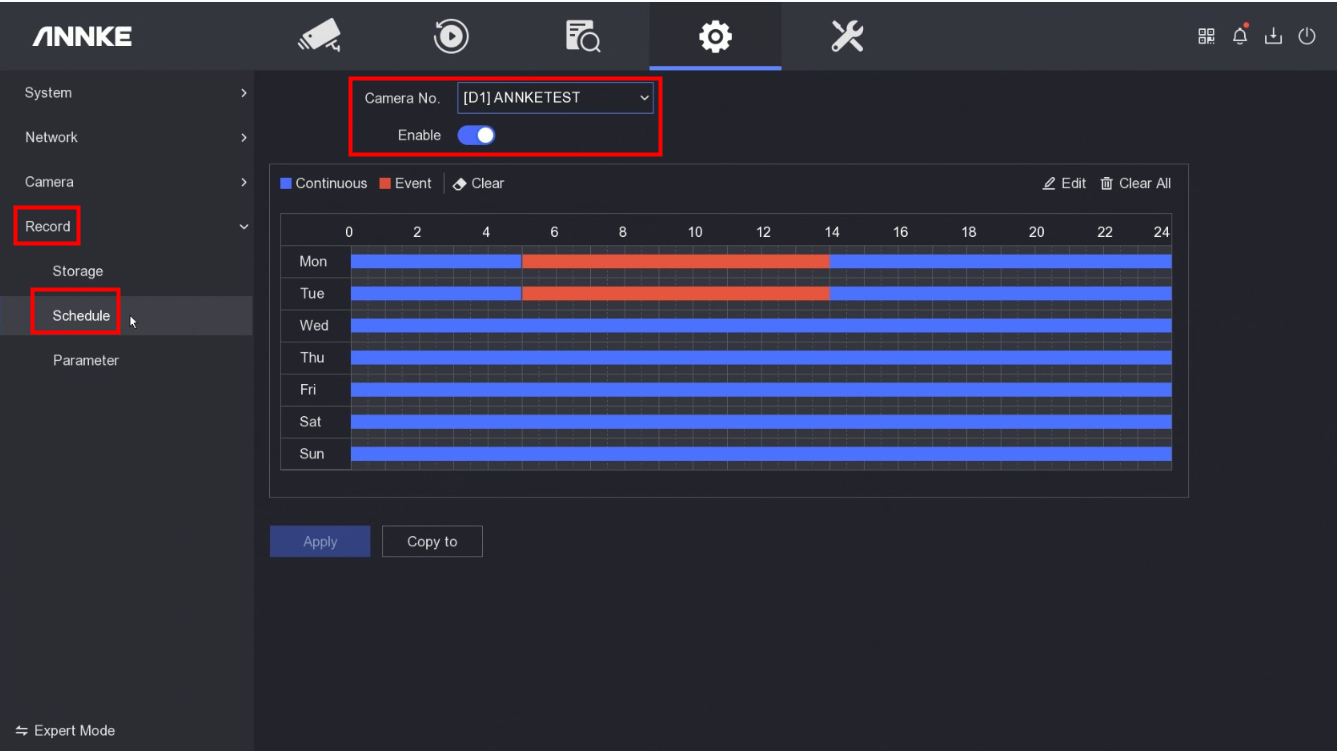
4. Go to 'Record→Schedule' to set the motion recording schedule.
Note:
- Continuous means 24/7 hours recording schedule.
- Event means motion recording schedule.
3. Click 'Apply' to save the configurations.
If you have any other questions, please contact ANNKE technical support at support@annke.com by email.
If this article is helpful to you, please click the "helpful" button after you review it. Any comments would be appreciated.
Was this article helpful?
Bu bilgiler sorununuzu çözmeye yardımcı oldu mu?
Still need help?
Uzman ekibimiz size yardımcı olmak için burada.