Annke Vision - How to Take Snapshots and Record Video Clips on Annke Vision App
Applies to:
DT41Y/DT61Y/DT81Y/DN41R/DN61R/DN81R/DT41GB/DT81GB/DT41DB/DT61EQ/DW81KD/DW61LD/DT81DP/N48PI/N46PI/N44PI/N44PAM/N48PAW/N46PCK/N88PCH/N441Y/N481Y/I21AE/I21AF/I41DQ/I61DQ/I61DR/I61DS/I41HG/I41CS/C800/C500/B1200/NC400/CZ500/CZ400/S500/S300/FC200/NCK800/H800/H500
Purpose:
Would like to take a snapshot or a video clip when you see something stunning on the Annke Vision app? This article introduces the steps to make this happen.
Taking snapshots:
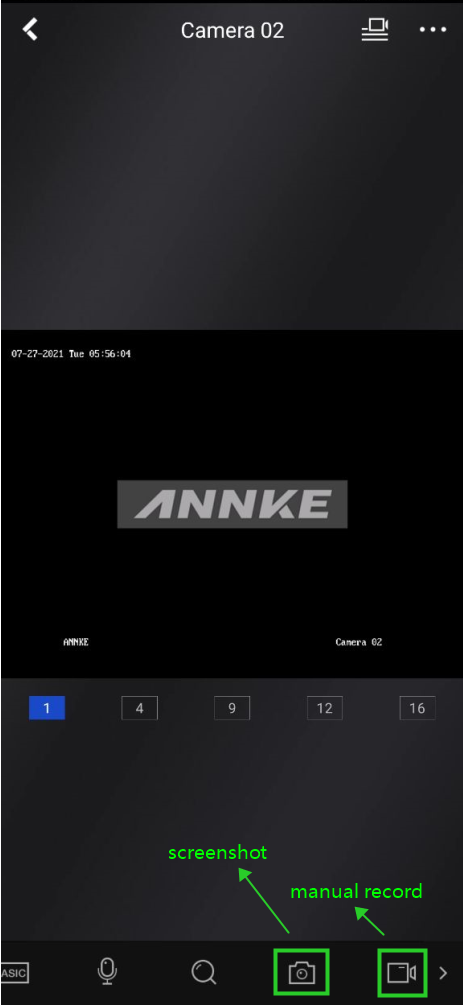
When watching camera live view or playback videos, touch on the 'Screenshot' icon to get a snapshot on the app.
Record video clips manually:
When watching camera live view or playback videos, touch the 'Record' icon to begin a manual record. Touch the same icon again to finish the manual record.
Where to find the snapshots and video clips?
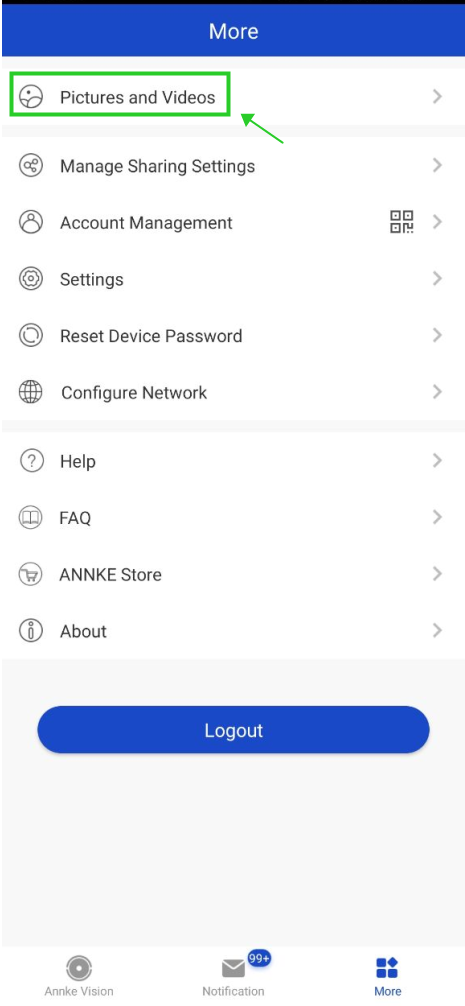
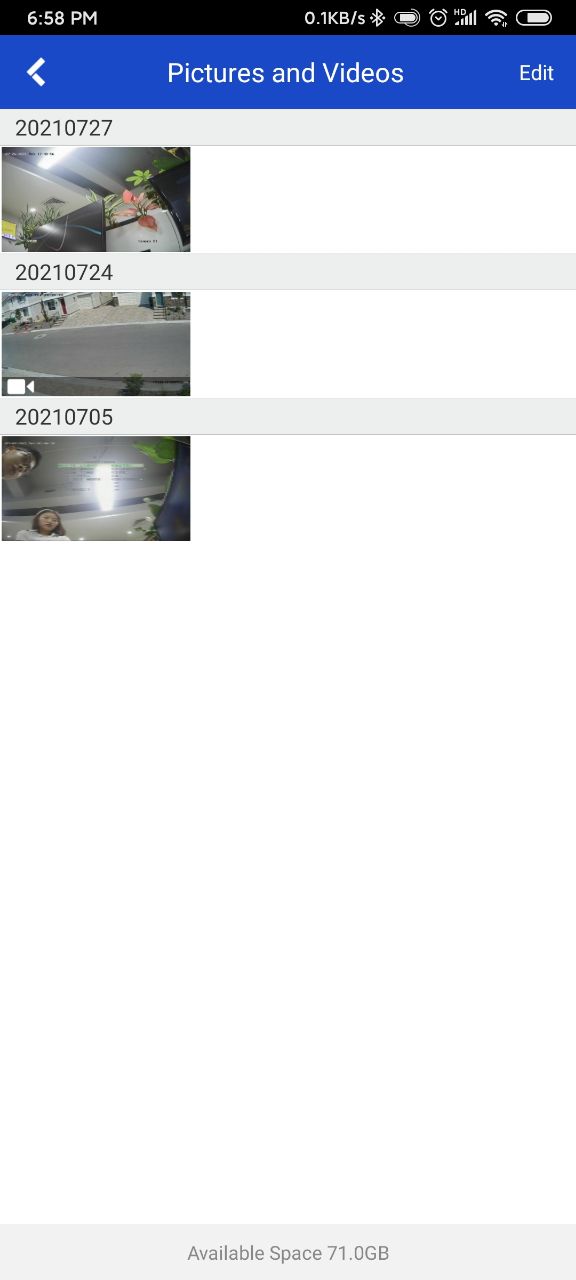
Navigate to the 'More' page on the app. Touch on 'Pictures and Videos' to see them.
You can also share them via email or other apps on your phone.
If you find this article helpful, please click 'Yes' at the end of this article;
If you have any suggestions or questions for this article, please leave a comment in the below comment zone.
Was this article helpful?
Bu bilgiler sorununuzu çözmeye yardımcı oldu mu?
Still need help?
Uzman ekibimiz size yardımcı olmak için burada.