Annke Vision - Managing Backup Devices on Export Interface on Annke DVR/NVR
Applies to:
DT41Y/DT61Y/DT81Y/DN41R/DN61R/DN81R/DT41GB/DT81GB/DT61GB/DT41DB/DT81DB/DT61EQ/DW41JD/DW81KD/DW61LD/DT81DP/N48PI/N44PI/N46PI/N44PAM/N48PAW/N46PCK/N88PCH/S500/S300/FC200/NCK800/H800/H500
Purpose: You can have management of USB flash drives, USB HDD and SATA HDDs.
Before you start:
- You should have installed storage devices like HDD before management.
- You should log in to your account.
- Click Menu> Export
- Enter into the Normal Search or Event Search interface and then select the cameras and set the search conditions.
Steps:
1. Click the Search button to enter the search result interface.
The matched video files are displayed in Chart or List-display mode.
Chart-Mode: 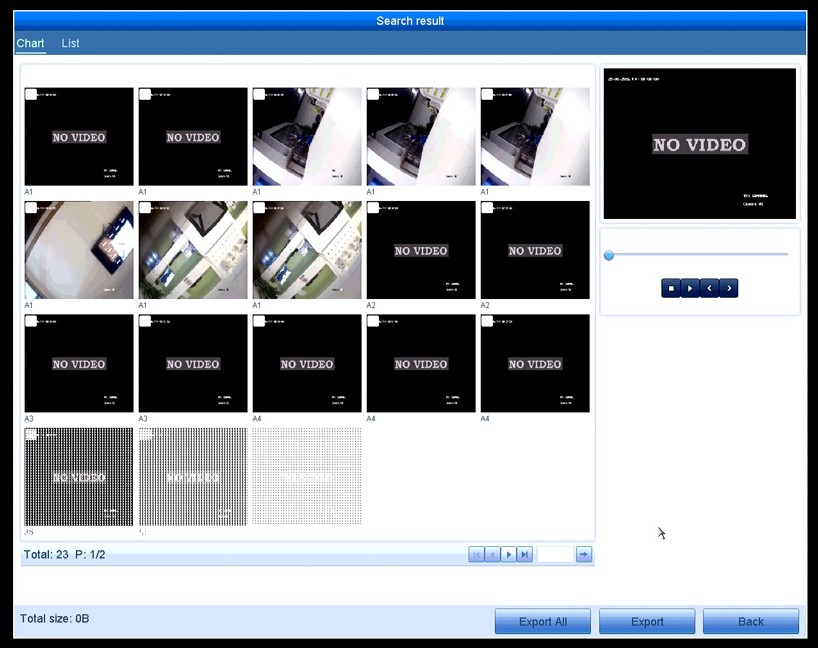
List-Mode: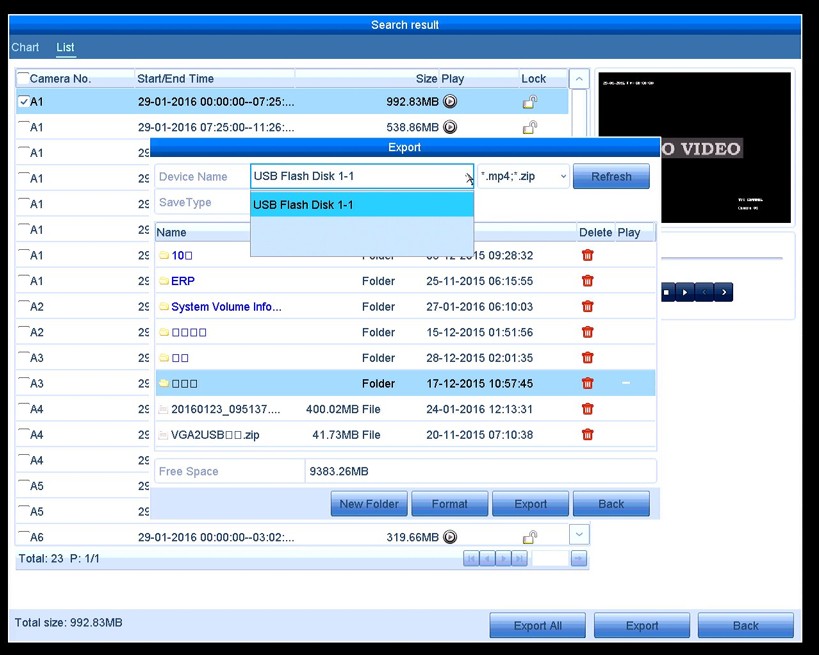
2. Backup device management:
In the List-Mode, Tick the camera No. you want, and Click Play to enter the Export interface.
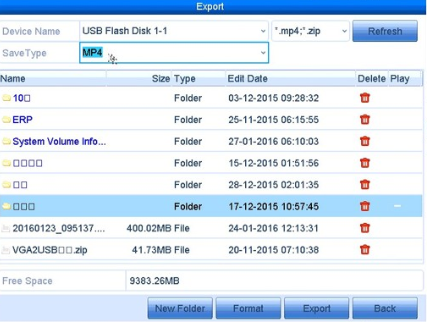
Device Name: Select the backup device from the drop-down list and you can also select the file format to filter the files existing in the backup device.
Save Type: Select the save type to MP4 or AVI.
New Folder: Click it If you want to create a new folder in the backup device.
Format: Click it to format the backup device.
Export: Click it to export the files.
 : Select a record file or folder in the backup device and click it if you want to delete the icon.
- Click the Refresh button.
- Reconnect device.
- Check for compatibility from the vendor.
Was this article helpful?
Bu bilgiler sorununuzu çözmeye yardımcı oldu mu?
Still need help?
Uzman ekibimiz size yardımcı olmak için burada.