Annke Vision - Set up Image Parameters on Annke DVR
Applies to: DT41Y/DT61Y/DT81Y/DN41R/DN61R/DN81R/DT41GB//DT81GB/DT61GB/DT41DB/DT81DB/DT61EQ/DW41JD/DW81KD/DW61LD/DT81DP/S500/S300/FC200
Purpose: You can set up video parameters on Annke DVR.
Before you start:
- You have logged in to your DVR.
- Click Menu > Camera management > Image > Image Settings
Interface:
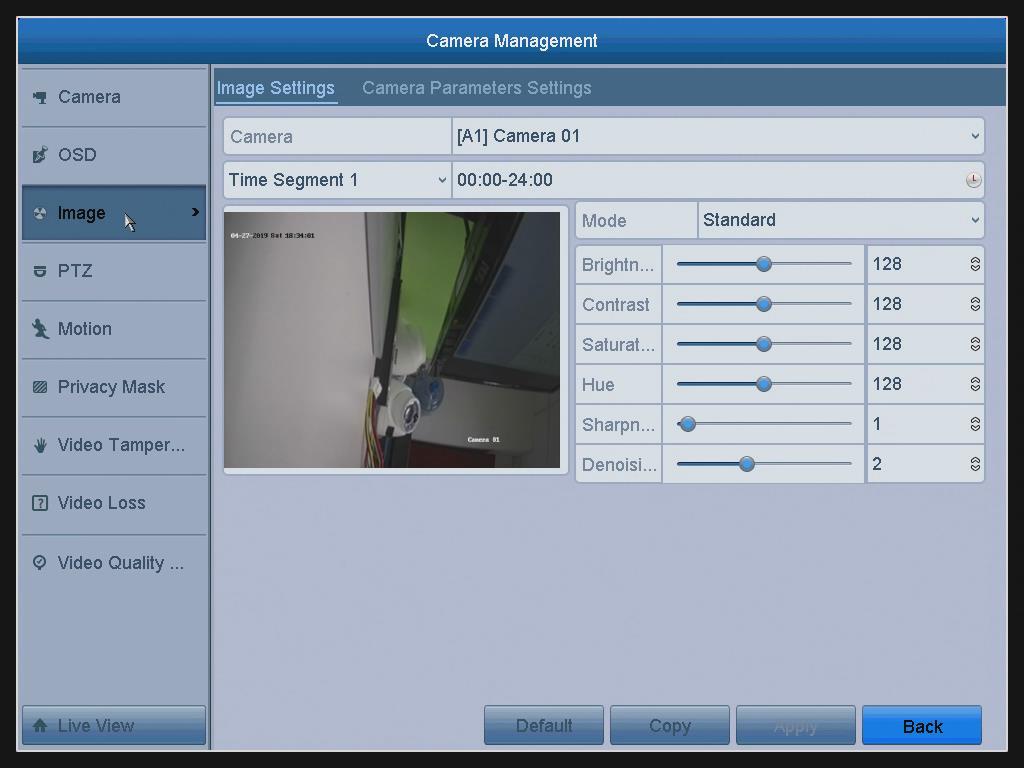
Camera: Select the camera to set image parameters.
Time Segment 1: Select the period name in the dropdown list. Two periods for different image settings are provided.
Mode: Select the mode from the drop-down list of Mode.
There are four modes selectable: Standard, Indoor, Dim Light and Outdoor.
Adjust the image parameters according to actual needs.
Such as Brightness, Contrast, Saturation, Hue, Sharpness, and Denoising.
Default: Click it and all the parameters can be set to be the default settings.
Copy: Click it to copy the same parameters to other channels.
Apply: Click it to save the settings.
Notes:
- On the Time Segment 1 option: the time periods cannot be overlapped with each other.
- After Adjust the image parameter, you can see the image effect on the left preview window.
Was this article helpful?
Bu bilgiler sorununuzu çözmeye yardımcı oldu mu?
Still need help?
Uzman ekibimiz size yardımcı olmak için burada.