Annke Vision - Set up Manual Recording on Annke DVR/NVR
Applies to: DT41Y/DT61Y/DT81Y/DN41R/DN61R/DN81R/DT41GB/DT81GB/DT61GB/DT41DB/DT81DB/DT61EQ/DW41JD/DW81KD/DW61LD/DT81DP/N48PI/N44PI/N46PI/N44PAM/N48PAW/N46PCK/N88PCH/N441Y/N481Y/
S500/S300/FC200/NCK800/H800/H500
Purpose:
Follow the steps to set parameters for the manual recording. Using manual recording, you don’t need to set a schedule for recording.
Before you start:
- You have logged in to your device.
- Click Menu > Manual > Record.
The Manual Record interface: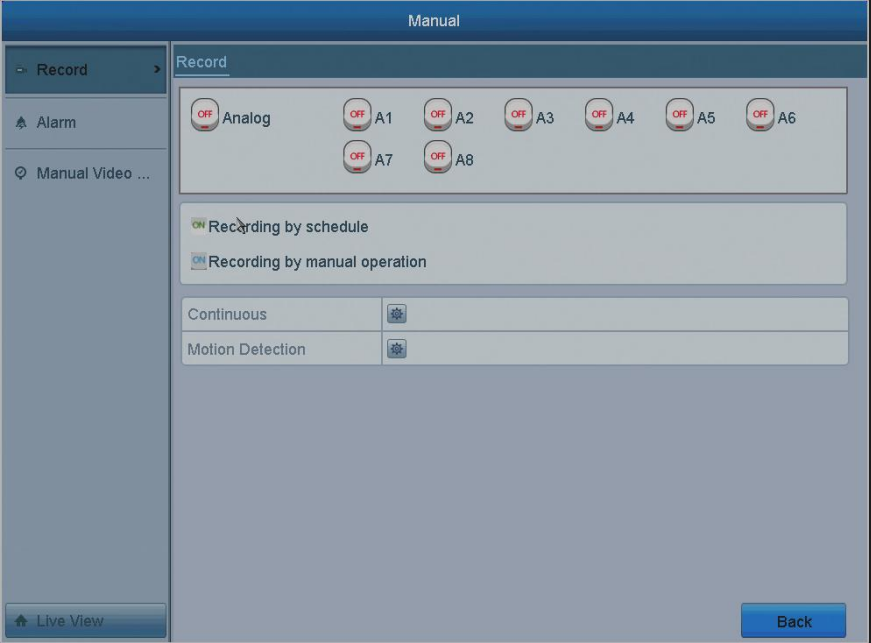 Enable the Manual Record: Click the status button before the camera number to change
  to
to 
Disable manual record: Click the status button before the camera number to change  to
to
Continuous: Start all-days continuous recording of all the channels.
Motion Detection: Start all-days motion detection recording of all the channels.
- The green icon means that the channel is configured with the record schedule.
After rebooting, all the manual records enabled will be canceled. - Using manual recording, you need to manually cancel the record.
- The manual recording is prior to the scheduled recording.
Was this article helpful?
Bu bilgiler sorununuzu çözmeye yardımcı oldu mu?
Still need help?
Uzman ekibimiz size yardımcı olmak için burada.