Annke Vision - Set up Normal Export on Annke DVR
20 Aug 2026
369 views
Applies to: DT41Y/DT61Y/DT81Y//DN41R/DN61R/DN81R/DT41GB/DT81GB/DT61GB/DT41DB/DT81DB/DT61EQ/DW41JD/DW81KD/DW61LD/DT81DP/S500/S300/FC200
Purpose: You can set up normal export on Annke DVR.
Before you start: You have logged in to your DVR account before setting up normal export.
Steps:
-
Click Menu> Export>Normal.
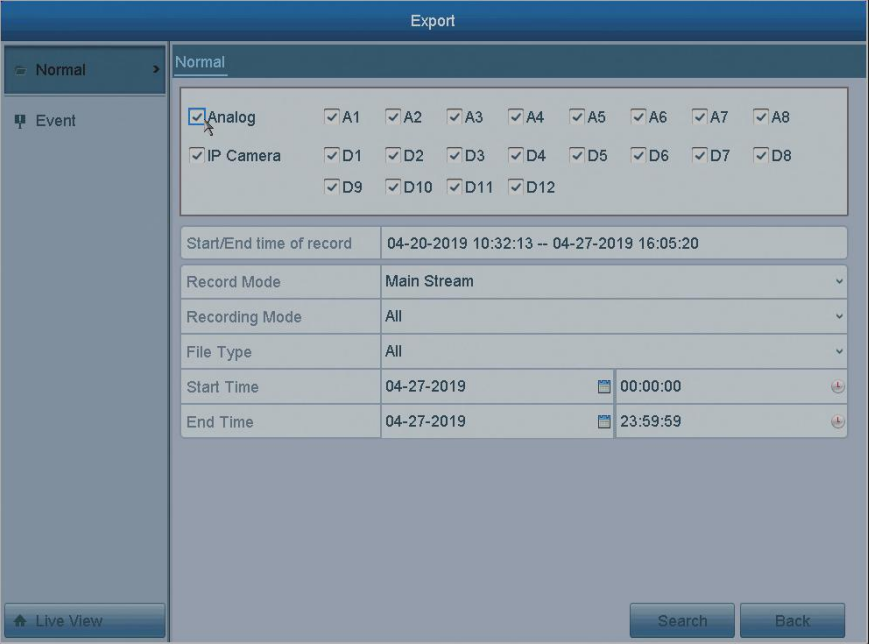
- Select the channel you want to investigate by checking
 the checkbox before the channel number.
 - Configure the record mode, file type, start time and end time.
- Click Search to show the results. It will be shown as a Chart or List Mode.
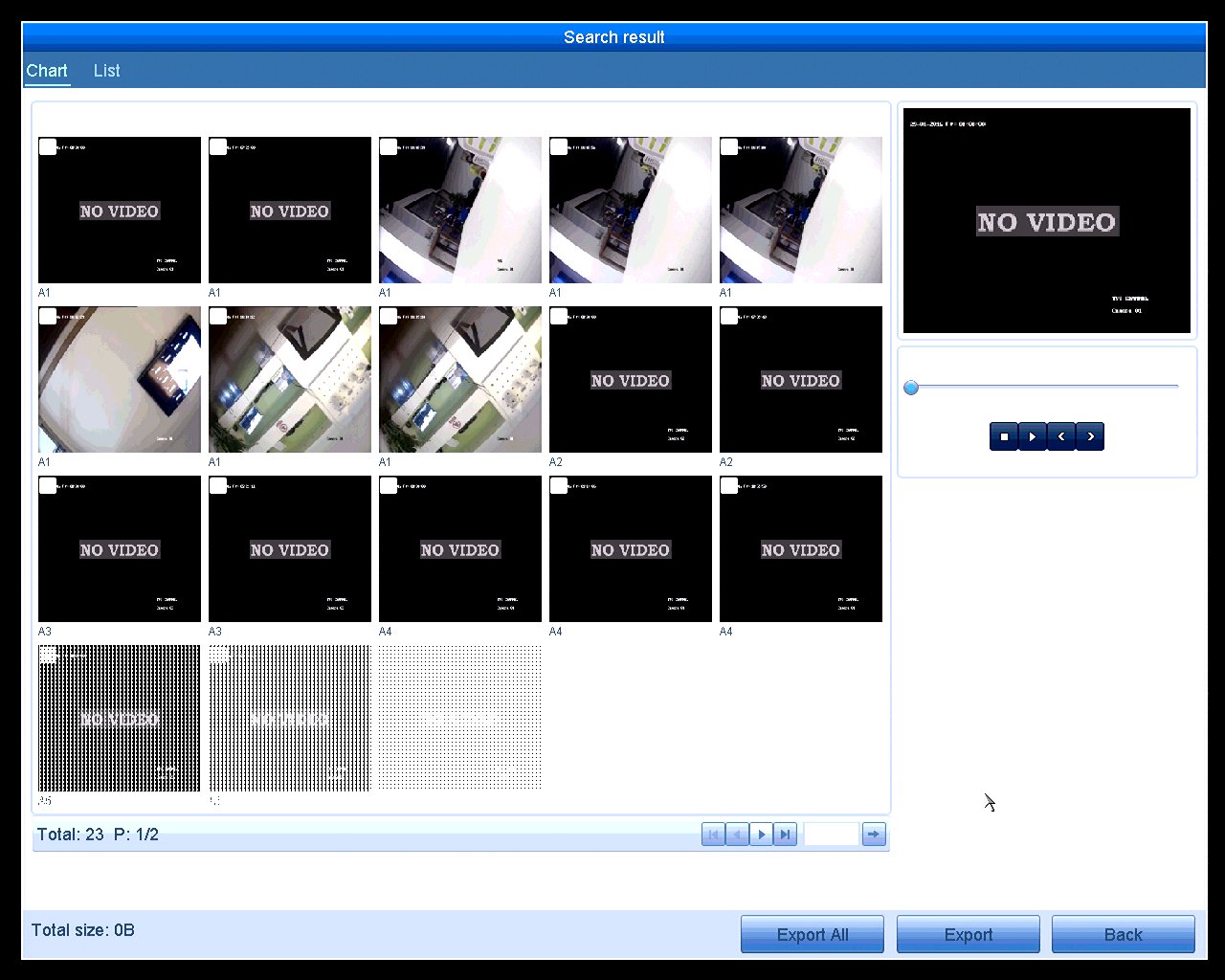

Both of the two modes can preview on the right top window the videos you selected.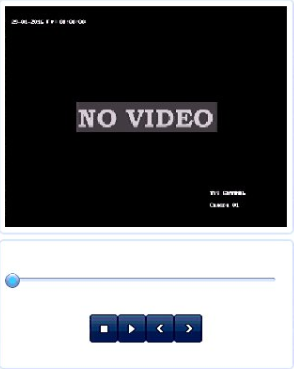
Note: You can pause, play, click pre and next video.
Export All: You can export all the files.
Export: Select the files you want and click it to export.
Back: Back to the Upper Page.
Notes: In List Mode, the meaning of the icon shown below indicate that the file is unlocked.
  indicate that the file is locked.
  play the video you have selected.
Was this article helpful?
Bu bilgiler sorununuzu çözmeye yardımcı oldu mu?
Thanks for your feedback!
Still need help?
Uzman ekibimiz size yardımcı olmak için burada.