MIPC - How to Connect the Camera to My Mobile Phone Using Wi-fi Method?
Applies to: I41EU/SP1/SP2/I21AZ/I21CF/I21BJ/I41CZ/I41CY/I41CR
First of all, please ensure your mobile phone has been connected to the network. (take iPhone as an example here)
A. Open the “MIPC” APP and click the "+" button.
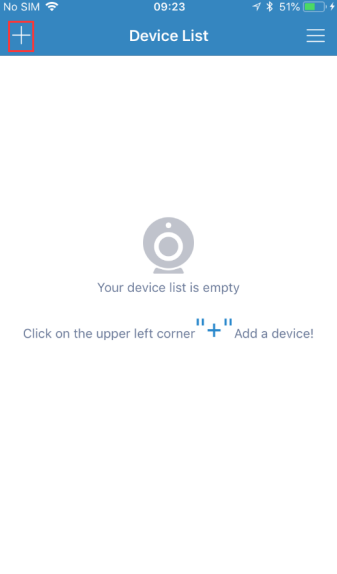
B. Choose“PTZ Cameras”.
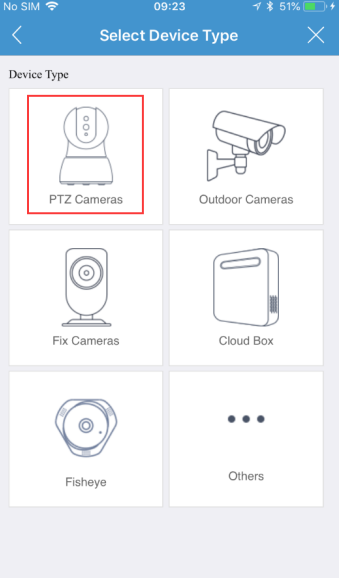
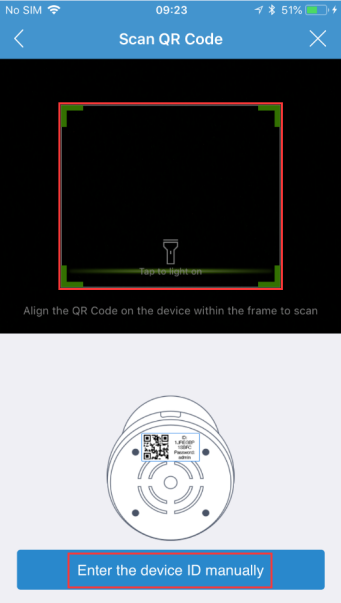
C. Scan the QR code on the bottom of the device or enter the device’s ID manually.
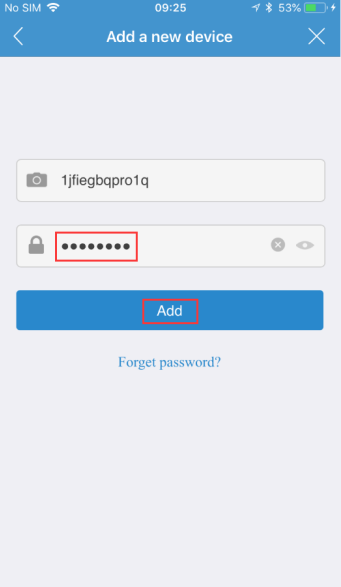
D. Input the device’s password (the default is “admin”) and click "Add".
E. Choose "Wi-Fi".
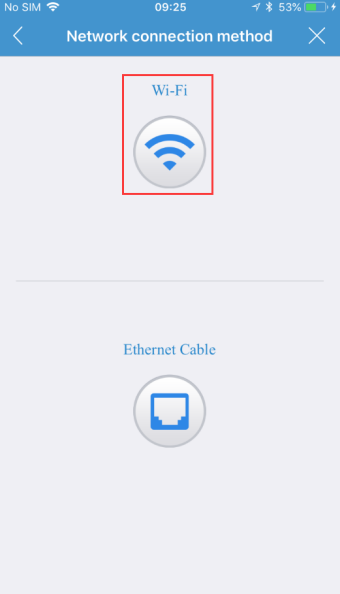
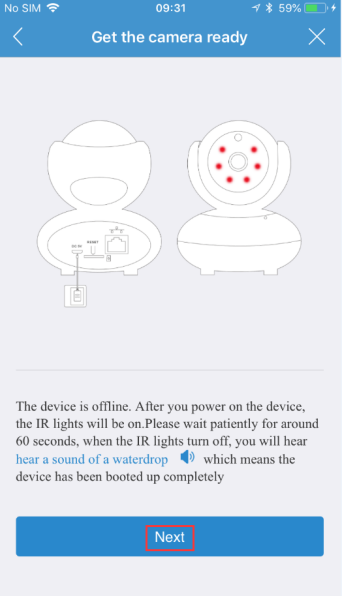
F. Follow the prompts as shown in the below picture and click “Next”.
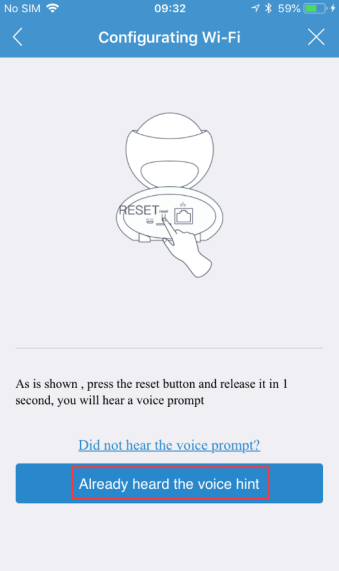
G. As shown in the picture below, please press the RESET button for 1 second and release, then you will hear a voice prompt. Please click “Already heard the voice hint”.
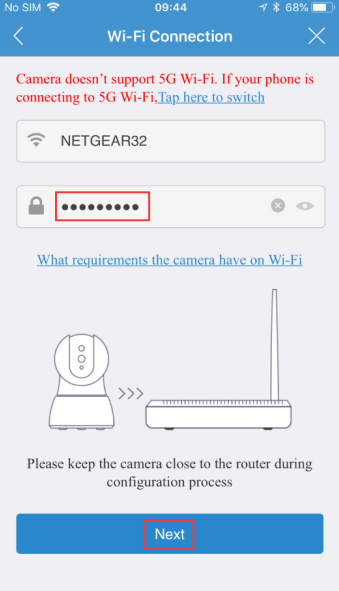
H. Input the Wi-Fi password and click "Next".
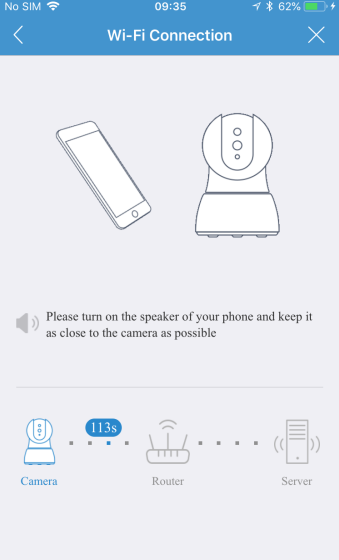
I. Now the device is configuring. Please turn on the speaker of your phone and keep it as close to the camera as possible.
Note: If your wireless connection fails, please long press the device’s reset button to reset the device and return to “step G” to reconfigure.
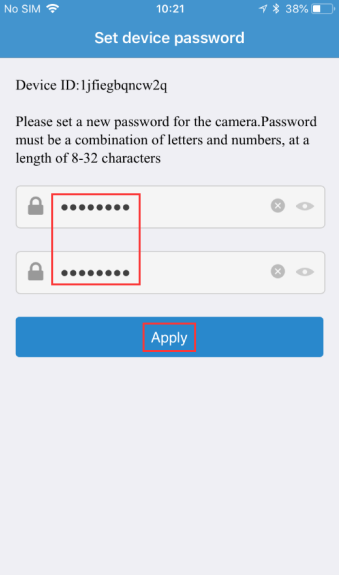
J. Set a new password as prompted, then click "Apply".
K. Now you can start the live preview.
Was this article helpful?
Bu bilgiler sorununuzu çözmeye yardımcı oldu mu?
Still need help?
Uzman ekibimiz size yardımcı olmak için burada.