Myannke - Learning the Icon of Camera's Live Video on the App
20 Aug 2026
375 views
Applies to: I41EJ
Purpose:
To view a camera's live video, touch a preview picture. The initial display will show a navigation bar with Buttons of record, snapshot, microphone, speaker, and Image setting buttons.
Before you start: Run the Myannke App, log in to your account and enter a camera live view page.
Icon introduction of the screen interface:
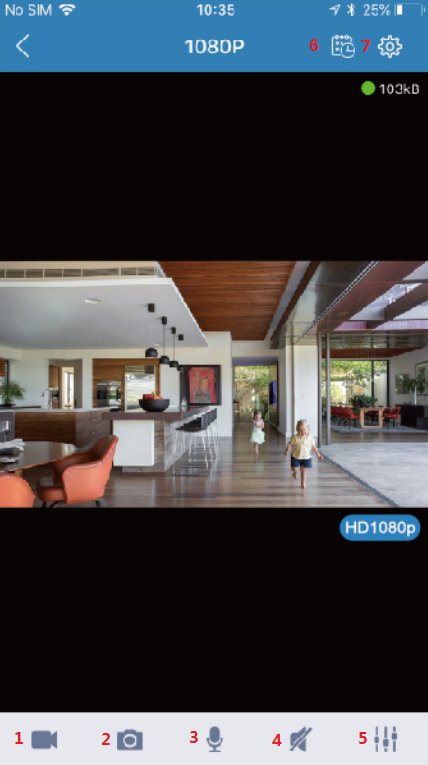
The below table is the description of live view icons:
| Icons | Description |
 |
Record: to initiate a live recording |
|
|
Snapshot: to create a snapshot image of the current view |
 |
Microphone: to transmit your voice through the device |
 |
Speaker: to transmit remote sounds |
 |
Image setting: which enables you to set the mode for brightness, contrast, saturation, etc. |
 |
History Access: which opens to the History page and a filter |
 |
Device settings: which opens with a list of Settings tabs |

Notes:
- The navigation bar will disappear after two seconds. Touch anywhere on the live view to activate it again.
- You can freely manipulate the phone screen to Pan, Tilt, and Zoom on the live view page.
Was this article helpful?
Bu bilgiler sorununuzu çözmeye yardımcı oldu mu?
Thanks for your feedback!
Still need help?
Uzman ekibimiz size yardımcı olmak için burada.