Sannce Smart-How to View the Security System on the PC Locally (via IP address)?
Applies to: DN41CR/DN81BR/DT61BR/DT61BT
The article will introduce how to connect the system to the PC. If you have a concern about the instruction, please submit a request here to the technical support for more details.
1. Please connect the SANNCE system to the same local network ( using the same IP segment) as the computer.
For example, After we enable DHCP on the system, it may get an IP address like 192.168.2.214. In this case, the comptuer should also be using this IP segment 192.168.2.X (such as 192.168.2. 210).
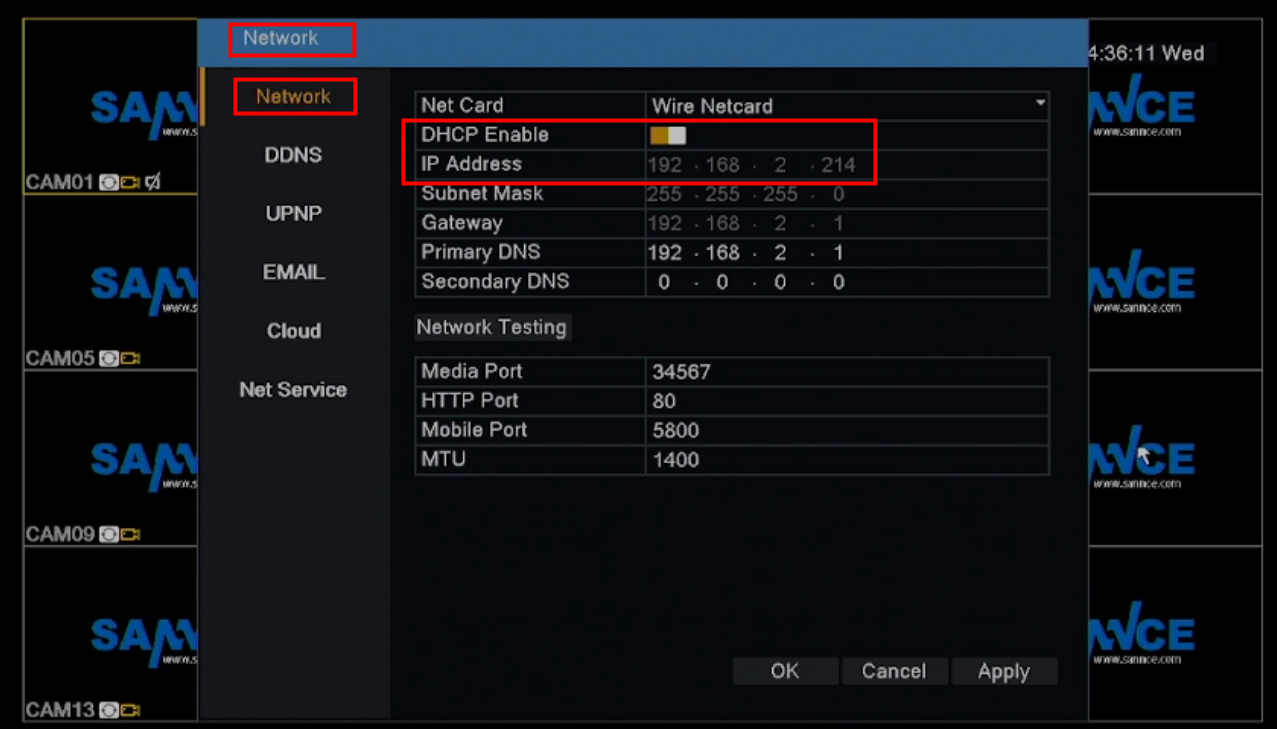
2. Download the software on your PC named VMS. Here is the download link:
http://www.sanncegroup.com/document/TS/VMS.exe
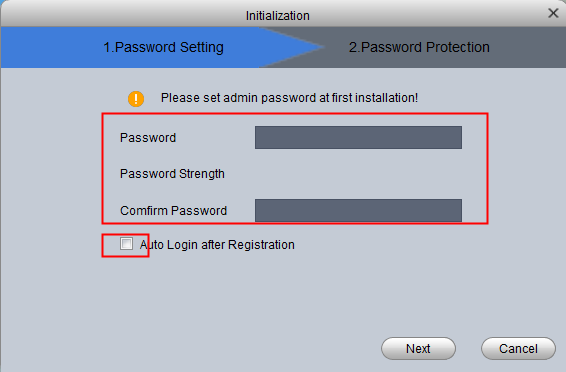
3. Run the software and set up a password for the software. It is better to enable Auto Login.
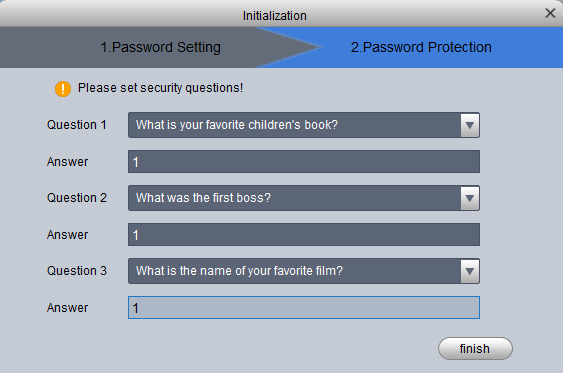
4. Set up Password Protection in case you forgot the login password.
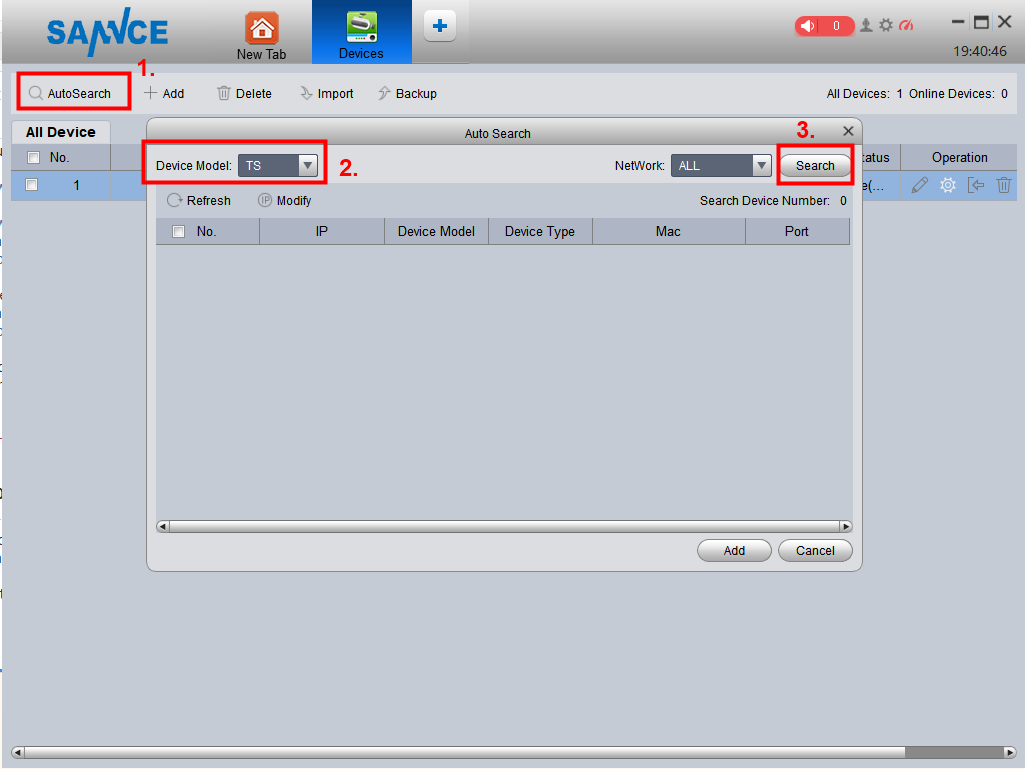
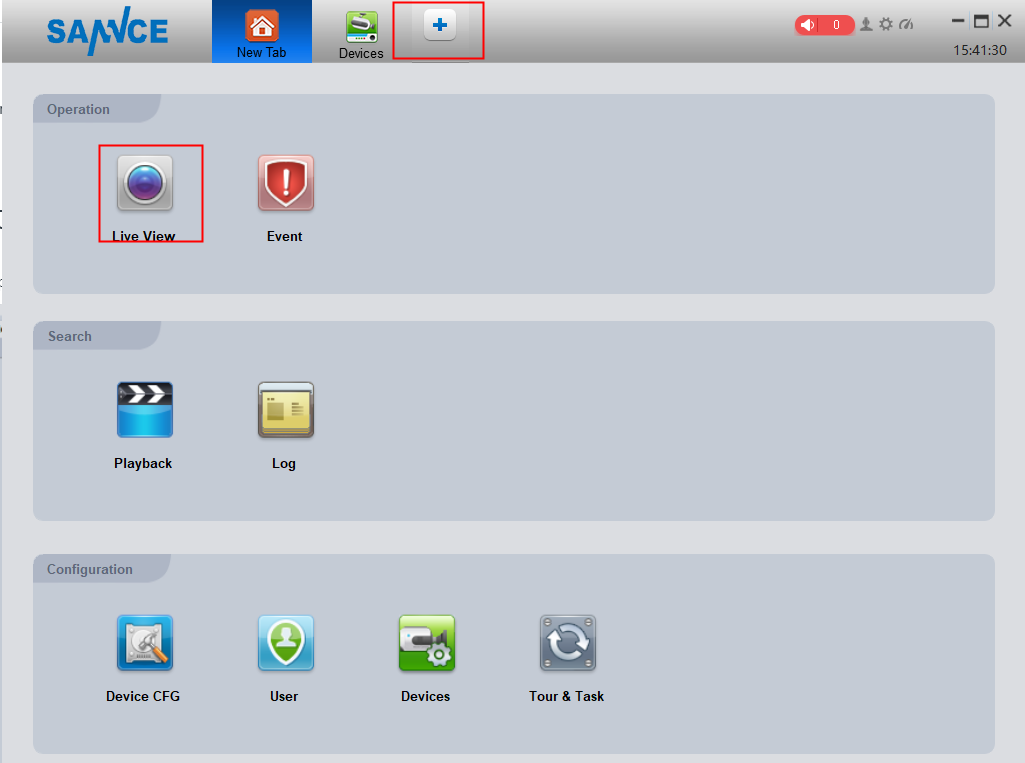
5. Click Devices under Configuration, then go to AutoSearch, set Device Model as 'TS', click Search.
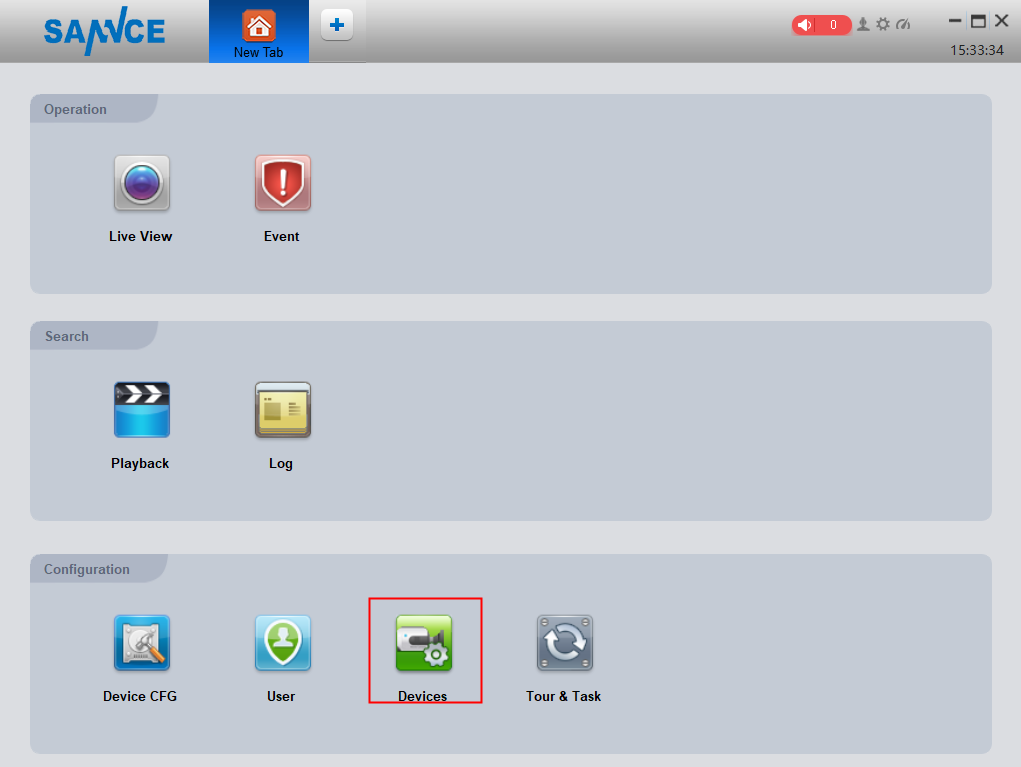
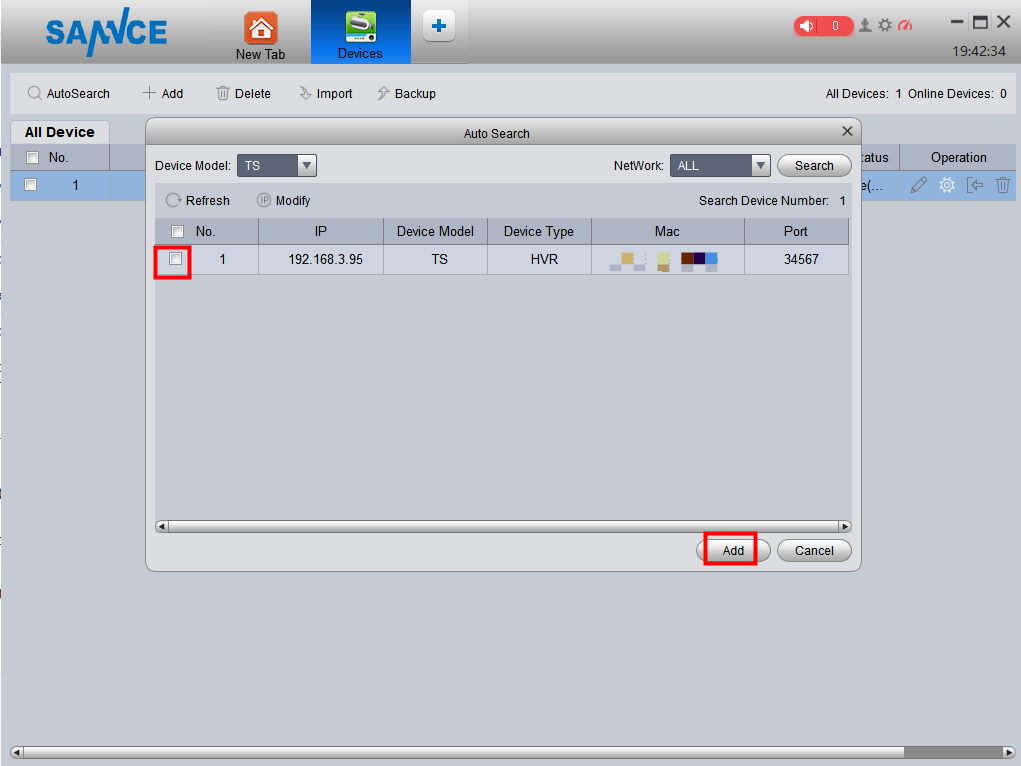
When the system is found, check its box and click Add
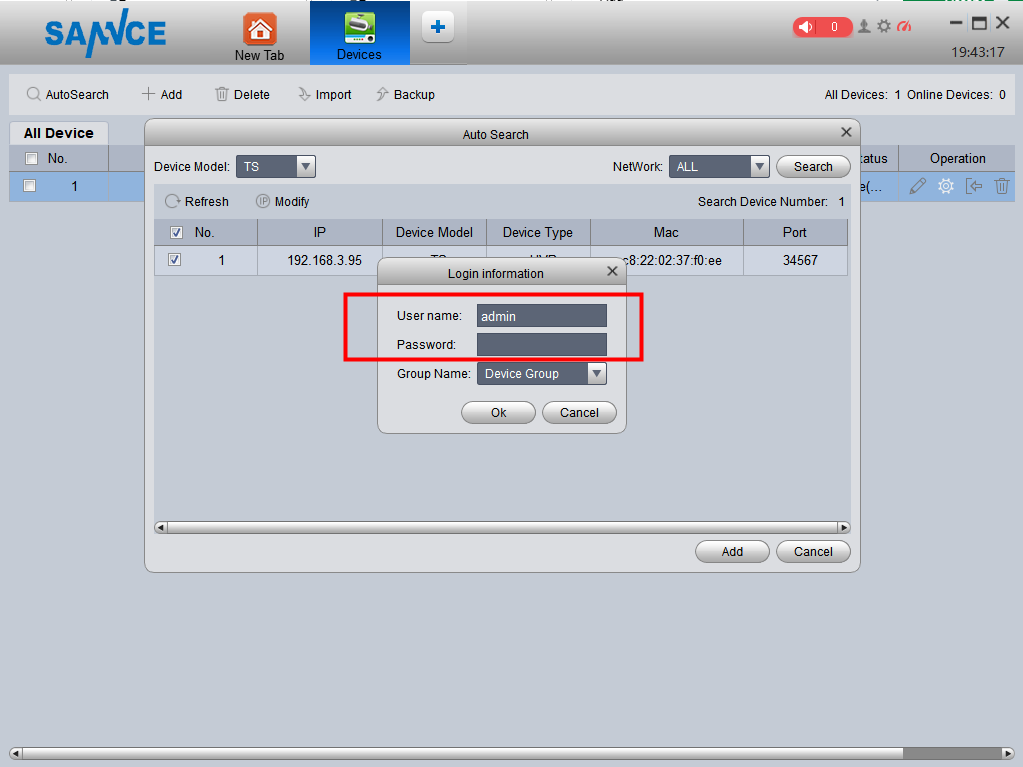
6. Input the admin password of the system (the one you used to log in the system on monitor/TV). Click Ok.
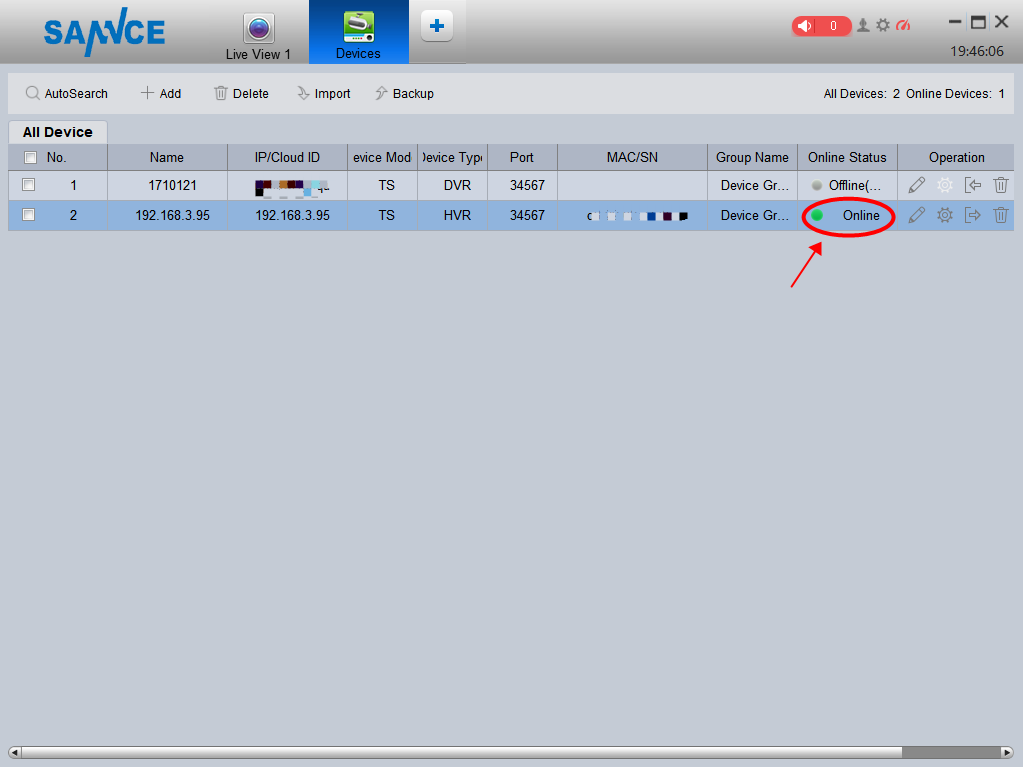
7. When you see the Online Status of the added system become 'Online', it's added successful.
8. After that, please go back to the Live View page. Double-click the cameras to view them.

Was this article helpful?
Bu bilgiler sorununuzu çözmeye yardımcı oldu mu?
Still need help?
Uzman ekibimiz size yardımcı olmak için burada.