XMeye - How to Back Up Videos Via the USB Drive?
Applies to:
DL41B/DL81B/DL41A/DL81A/DL41D/DL81D/DH81S/DH81X/DH81NG/DM41D/DM41A/DM81A/DN41D/DN81D/DN41S/DN41NA/DM41H/DM81H/DM21O/DM31O/DE41N/DE81N/DN81NB/DM81Z/DM61W/DG81CP/DG81CQ/DH81NK/DG81CR/DH41NK/DM41G/DN41CJ/DN81BJ/DN61EC/DG81W/DG61X/DG41T/DT81DQ/DT41DC/DT61ER/DG41BE/DG81BE/NP41F/N43SU/N44SU/N48PZ/N481U/N441U/N44PBD/N461W
You can refer to these steps below to back up video files to external storage.
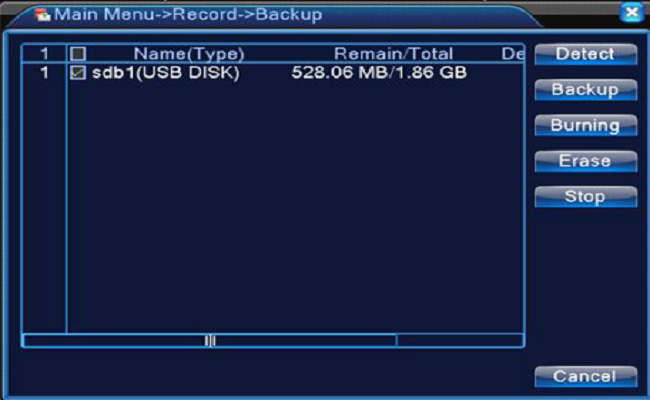
1. Please plug the USB drive in the USB port of the recorder at first. Then, please go to Main Menu-->Record-->Backup, select the USB drive.
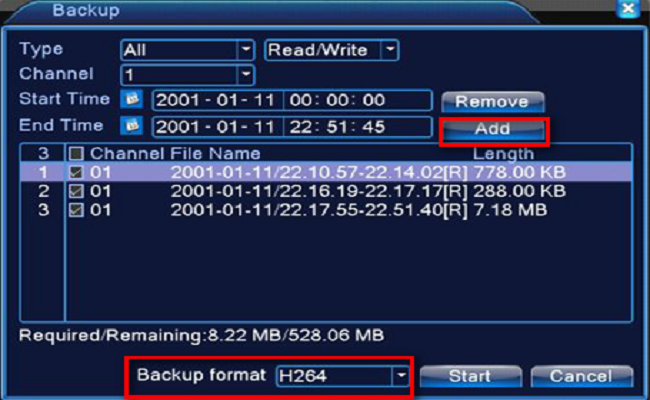
2. Please click the Backup option and the dialogue box will be popped up. You can choose the backup files according to the Type, Channel, and Time. Add files, select Backup format (AVI or H.264), and click 'Start'.
NOTE: Suggest backup video format via AVI, as it can be played on the most player. For H.264 files, It can only be played by the private player.
Here is the link to download the private player:
http://sanncegroup.com/document/Computer%20software/Videoplayer.zip
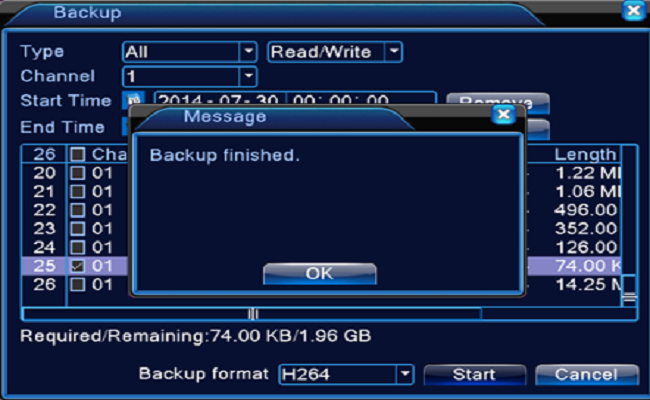
3. You will get the message 'Backup finished', please click 'OK', then you can take the USB drive out and play the videos on PC.
Was this article helpful?
Bu bilgiler sorununuzu çözmeye yardımcı oldu mu?
Still need help?
Uzman ekibimiz size yardımcı olmak için burada.