XMeye - How to Record or Take Snapshot to Local Disk of Computer?
Applies to:
DL41B/DL81B/DL41A/DL81A/DL41D/DL81D/DH81S/DH81X/DH81NG/DM41D/DM41A/DM81A/DN41D/DN81D/DN41S/DN41NA/DM41H/DM81H/DM21O/DM31O/DE41N/DE81N/DN81NB/DM81Z/DM61W/DG81CP/DG81CQ/DH81NK/DG81CR/DH41NK/DM41G/DN41CJ/DN81BJ/DN61EC/DG81W/DG61X/DG41T/DT81DQ/DT41DC/DT61ER/DG41BE/DG81BE/NP41F/N43SU/N44SU/N48PZ/N481U/N441U/N44PBD/N461W/N48PAU
If you set up the manual recording for the cameras on the computer software CMS, the recording could be saved on the computer disk.
Firstly, you can refer to this link below to install CMS software into your windows computer and add a recorder to CMS.
https://support.sannce.com/hc/en-us/articles/900000448746
Then, please go to This link below to download the official video player.
http://sanncegroup.com/document/Computer%20software/Videoplayer.zip
Here are the steps to set up the manual recording:
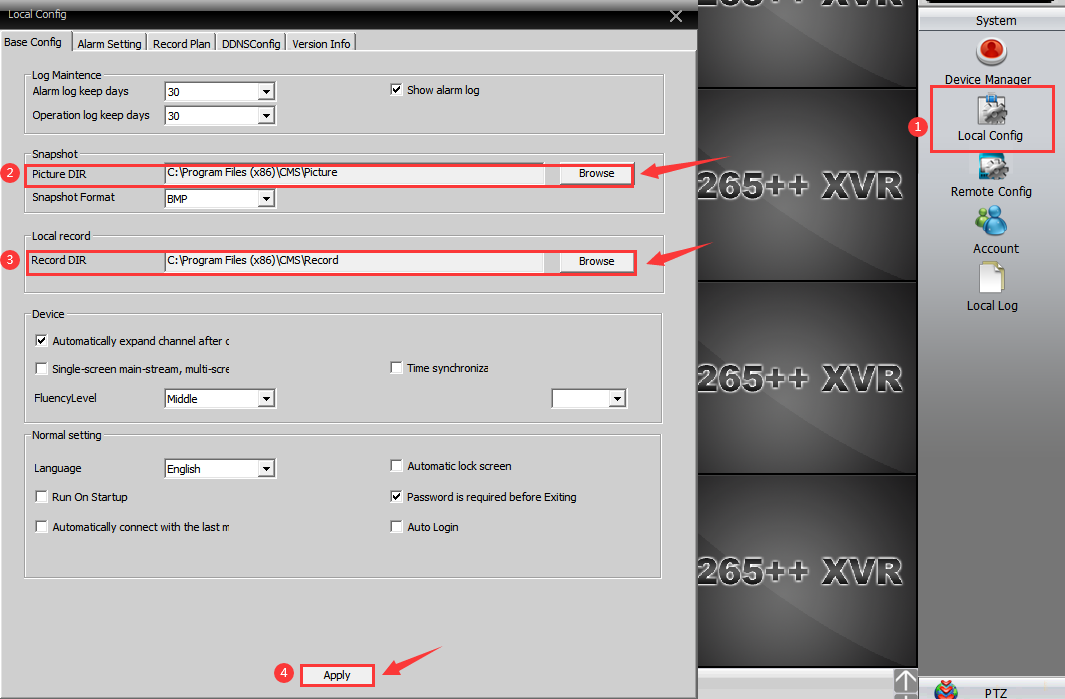
1. Please select the video path first.

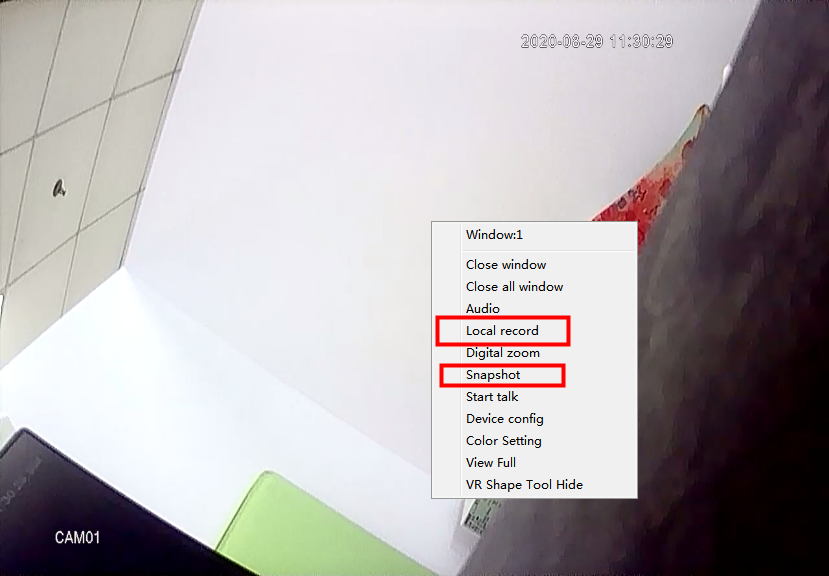
2. Please right-click the image of the camera to enable recording. (You can also click snapshot to take a picture)

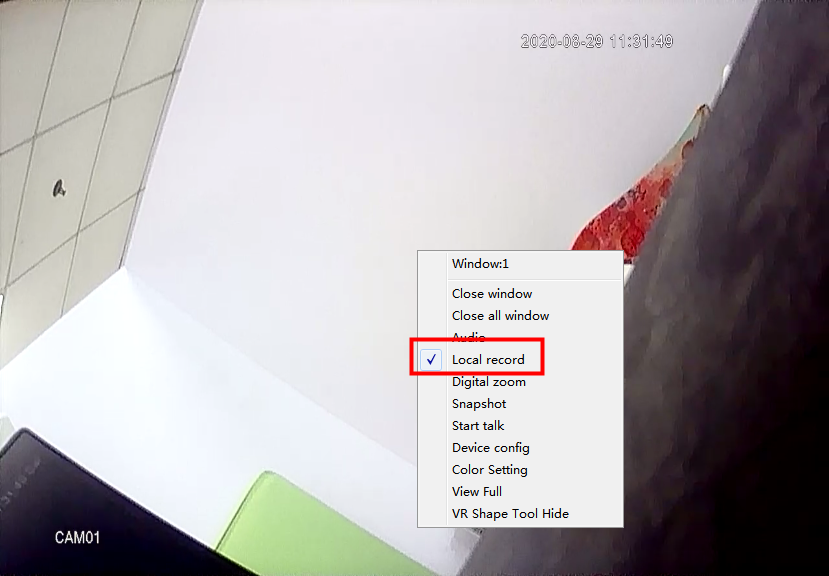
3. Please right-click image again to disable recording.
4. Please go to the path to check and play the recording.

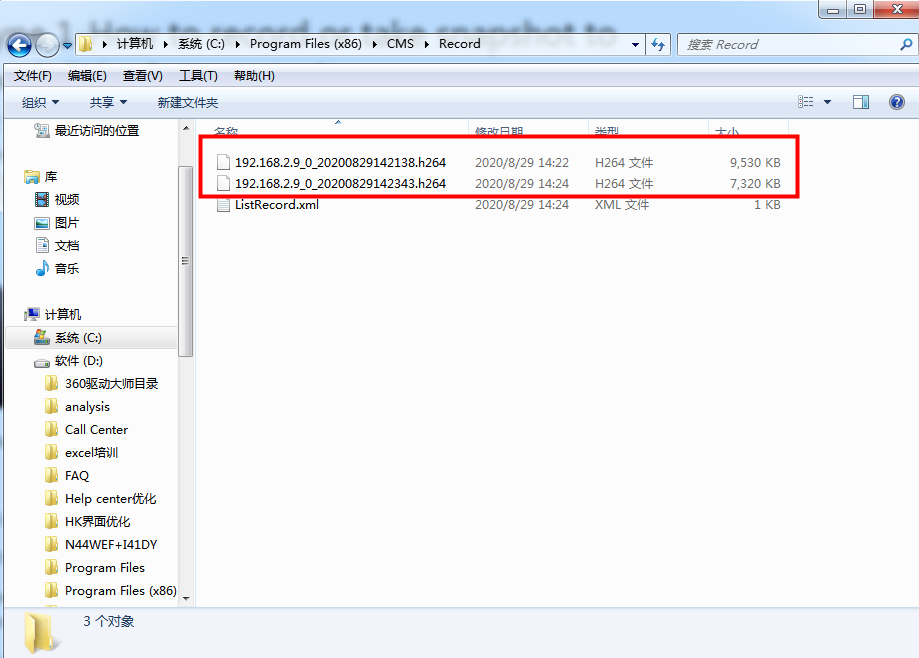
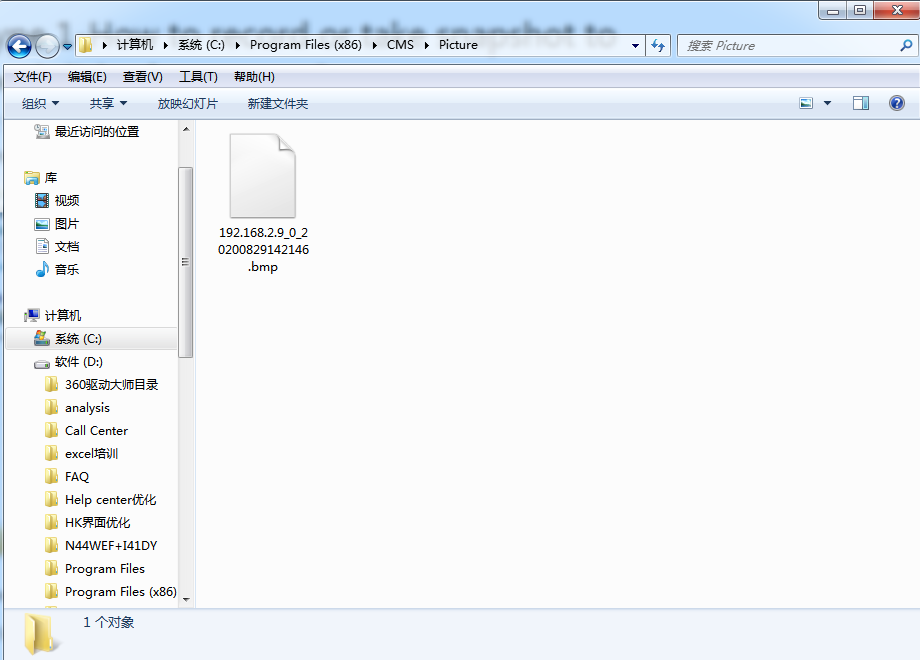
Please note that the format of the recordings is H.264, so please use the official video player to play the recording.
Was this article helpful?
Bu bilgiler sorununuzu çözmeye yardımcı oldu mu?
Still need help?
Uzman ekibimiz size yardımcı olmak için burada.