ZKBioAccess - Add and connect a device
Note: For this sample, we used a ZK-EFACE10, and ZK-INBIO260 device.
The server IP address and port for this sample are 172.18.204.77:8099
Preparing the device to connect to the ZKBioAccess server
1. Check the IP address and port of the server
2. Set the Communication Address in the device
3. Add the device to the ZKBioAccess Server
On the software side
1. Enter the IP address of the server
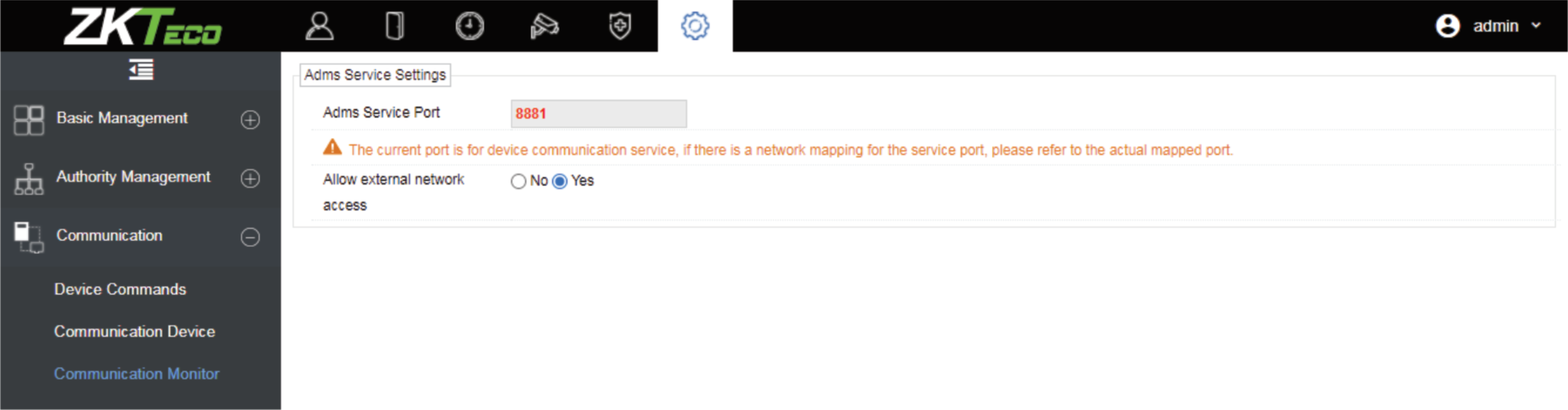
2. Click System > Communication > Communication Monitor to set the
ADMS service port, as shown in the figure below, and check the port number to be used:
Steps to connect the ZK-EFACE10
On the Device side:
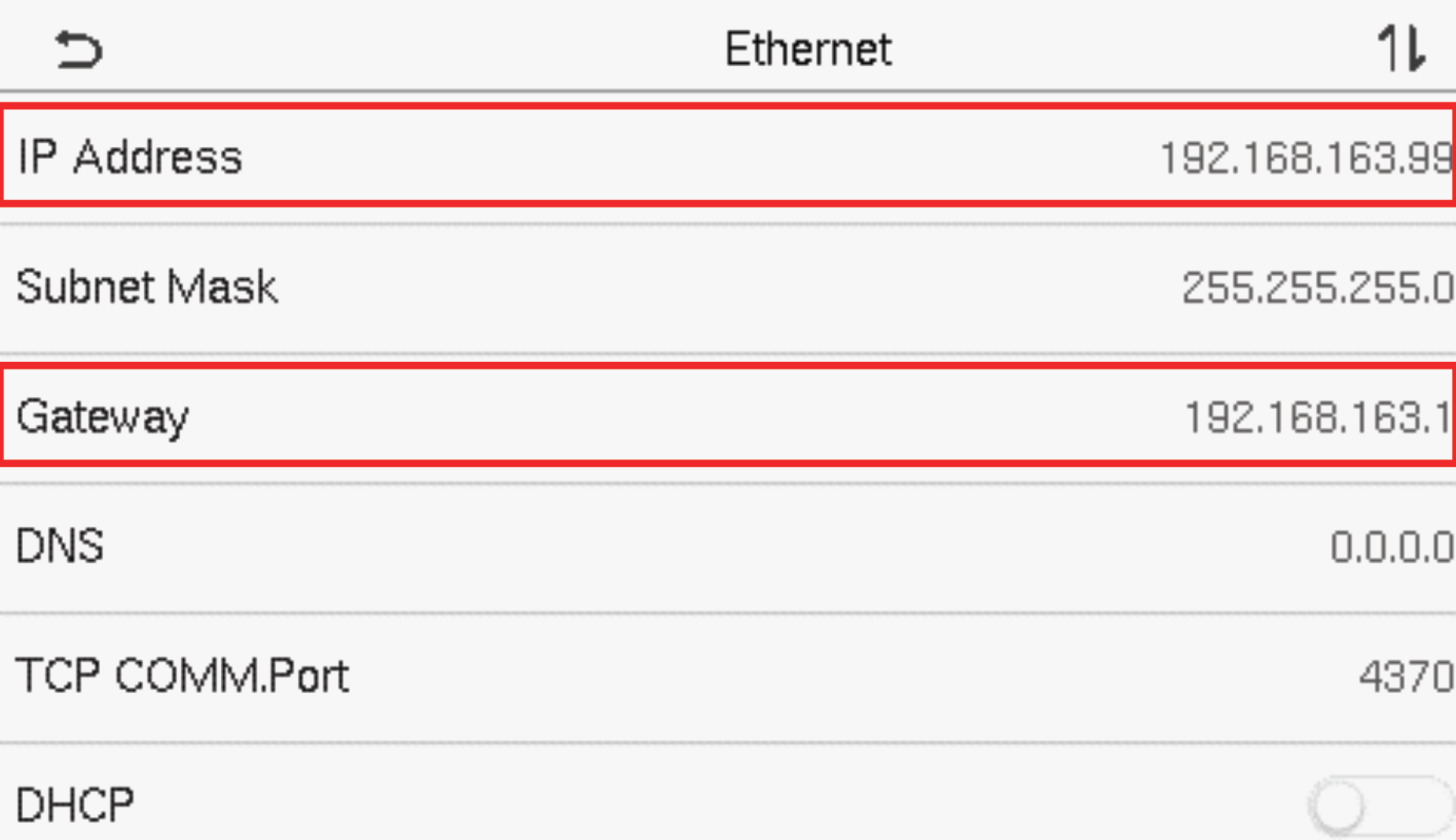
1. Tap COMM. > Ethernet in the main menu to set the IP address and gateway of the device.
(Note: The IP address should be able to communicate with the ZKBioAccess IVS server, preferably
in the same network segment with the server address)
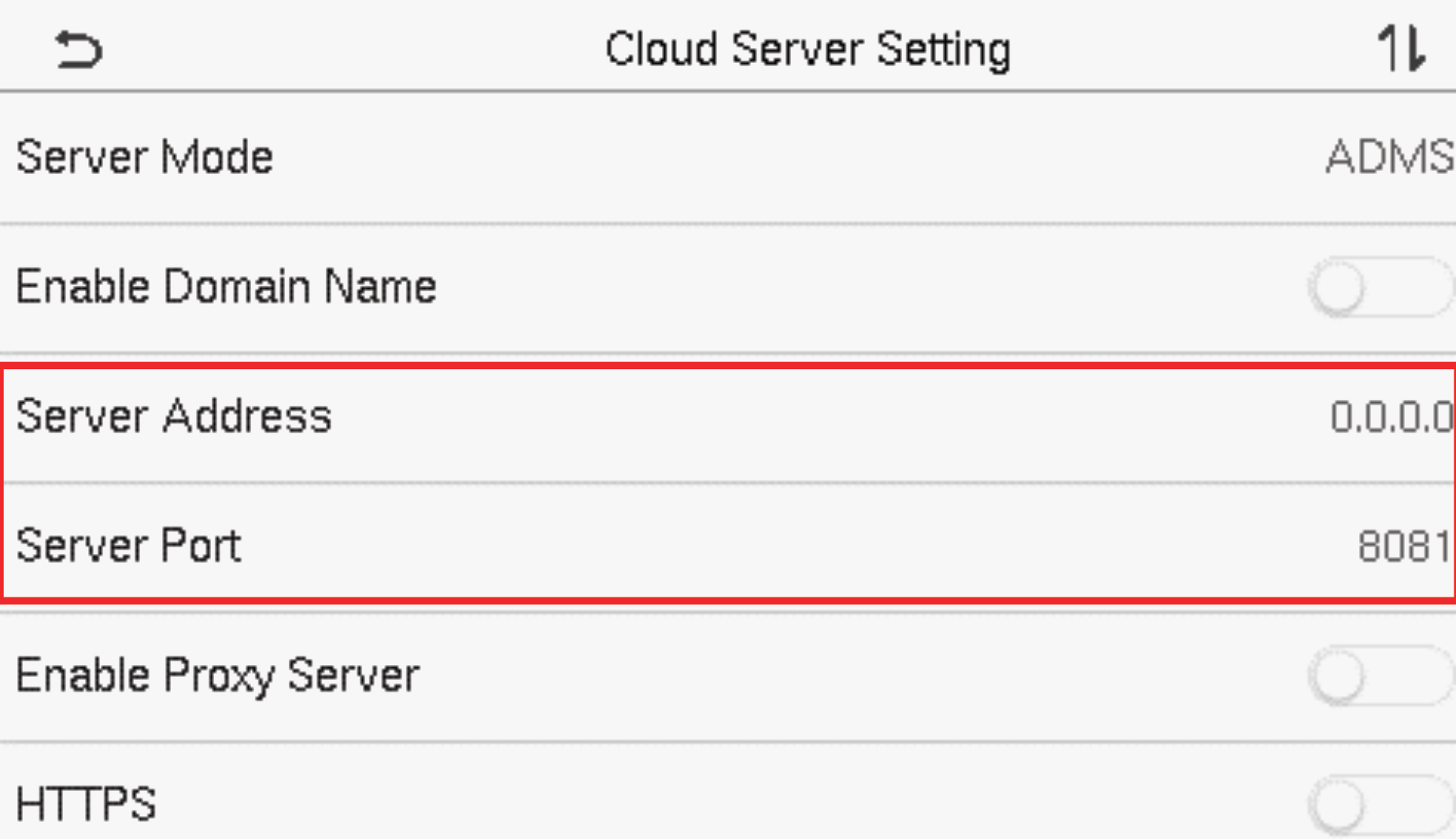
2. In the main menu, click COMM. > Cloud Server Setting to set the server address and server port.
Server address: Set the IP address as of the ZKBioAccess IVS server.
Server port: Set the server port as of ZKBioAccess IVS(The default is 8881).
Steps to connect the ZK-INBIO260
1. Look up the IP address from the device
2. Download, install and open the Communication Settings Tool V 2.0 (Software download here)
Add an Attendance Device to the Software
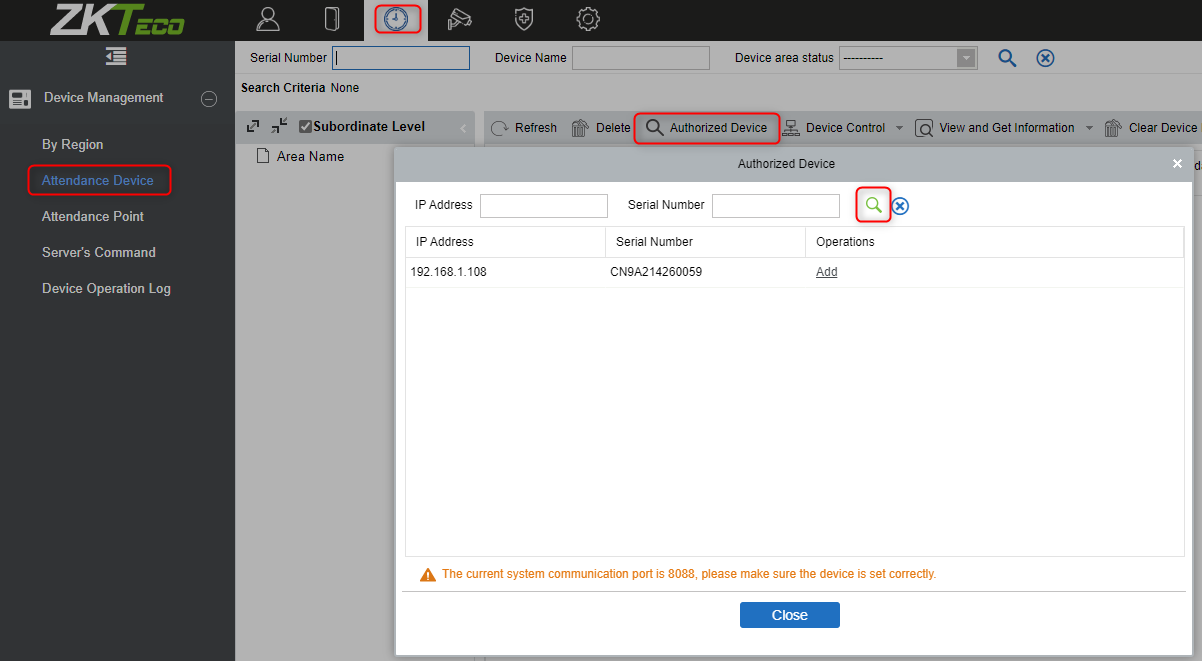
Add the device by searching. The process is as follows:
1. Click on Attendance > Attendance Device > Authorized Device > Search, to open the Search interface in the software.
Add an Access control Device to the Software
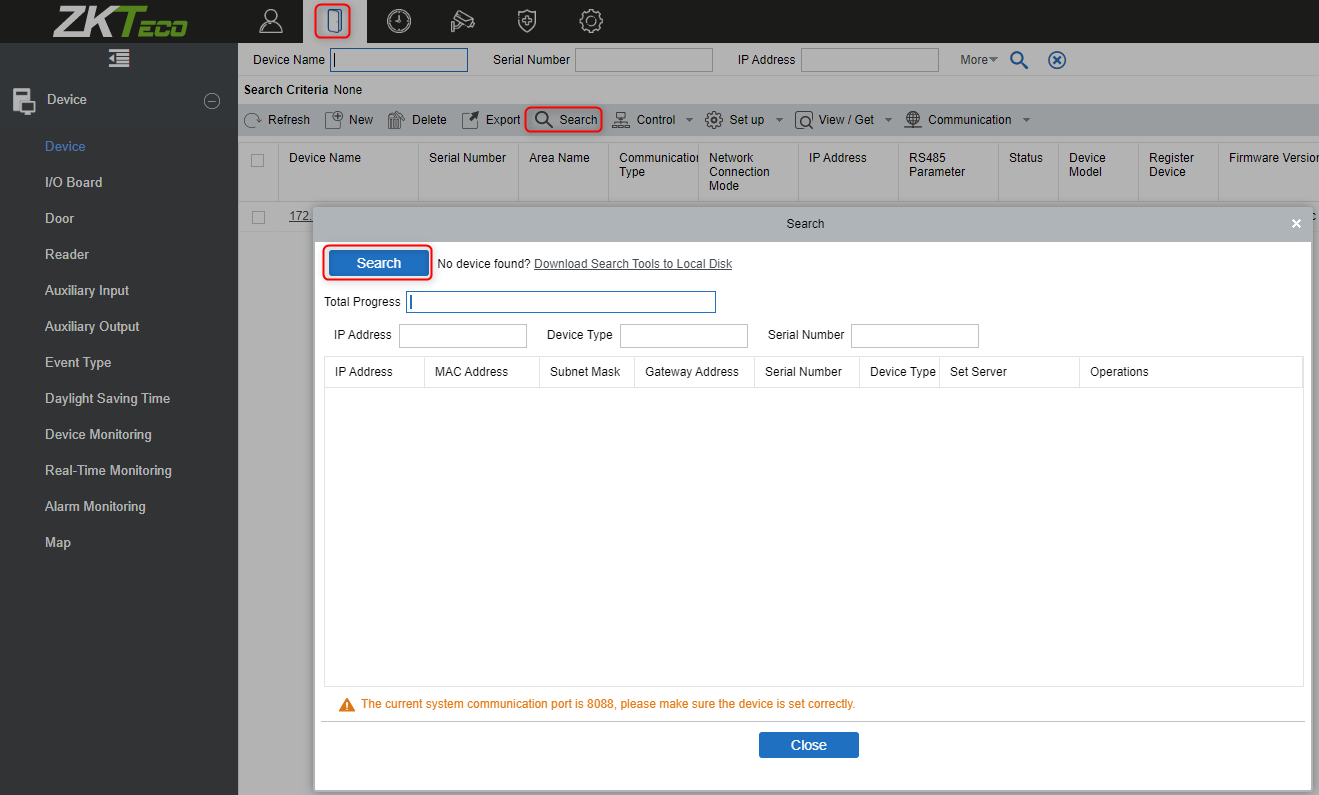
Add the device by searching. The process is as follows:
1. Click on Access > Device > Search, to open the Search interface in the software.
Was this article helpful?
Bu bilgiler sorununuzu çözmeye yardımcı oldu mu?
Still need help?
Uzman ekibimiz size yardımcı olmak için burada.